

Nextcloud Talk
Send notifications to a Nextcloud Talk conversation through a bot.
Nextcloud Talk is the chat app of Nextcloud. Portabase posts its notifications in a conversation using a Talk bot.
Configuration on your Nextcloud instance
Install a bot with the response feature, using a secret of 40 to 128 characters (e.g., generated with openssl rand -hex 32): occ talk:bot:install --feature=response "Portabase" "<secret>" "https://portabase.example.com".
Get the bot ID with occ talk:bot:list, then enable the bot in the conversation that should receive the notifications: occ talk:bot:setup <bot-id> <conversation-token>.
Copy the conversation token: it is the last part of the conversation URL (e.g., j3yujpuh in https://cloud.example.com/call/j3yujpuh).
Bots require Nextcloud 27.1 and Talk 17.1 or later. The URL given to occ talk:bot:install is required by
Nextcloud but is never called by Portabase.
Configuration on the dashboard
Go to Notifications > Channels, click on + Add Notification Channel, and choose Nextcloud Talk.
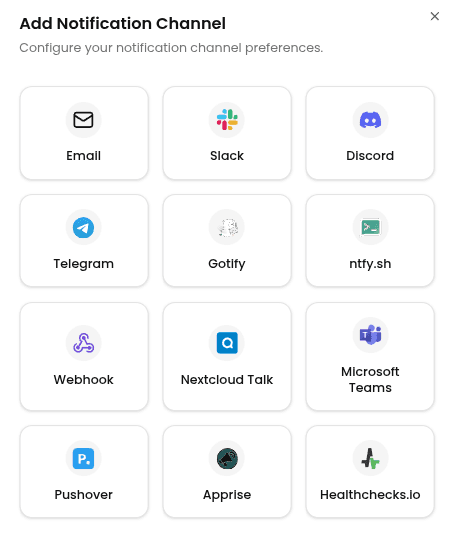
Enter the following information:
- Channel Name: A label for this channel in Portabase.
- Nextcloud URL: The full URL of your Nextcloud instance (e.g.,
https://cloud.example.com). - Bot Token: The token of the conversation where the bot is enabled (e.g.,
j3yujpuh). - Bot Secret: The secret used when installing the bot.
To test the configuration, click the channel's edit icon, then click Test Channel. The message should appear in your Talk conversation, posted by the bot.
Last updated on