

Keycloak
Configuration guide for Keycloak via OIDC in Portabase.
Keycloak integration offers robust identity management and SSO capabilities for your Portabase instance.
Configuration Steps
Create a Client
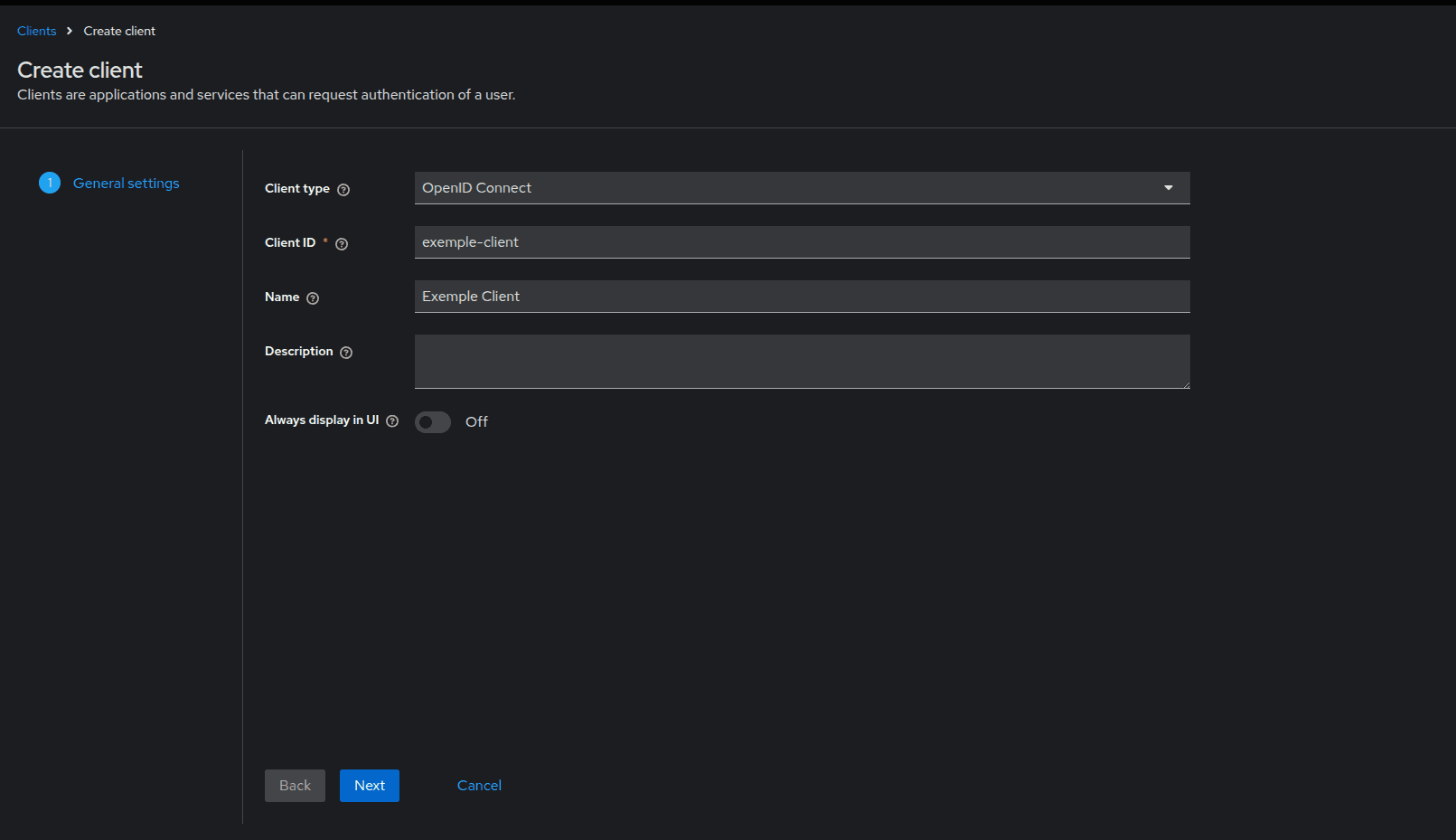
Log in to the Keycloak admin console, choose your Realm, and create a new client:
- Client type:
OpenID Connect. - Client ID:
portabase.
Authentication and Flow
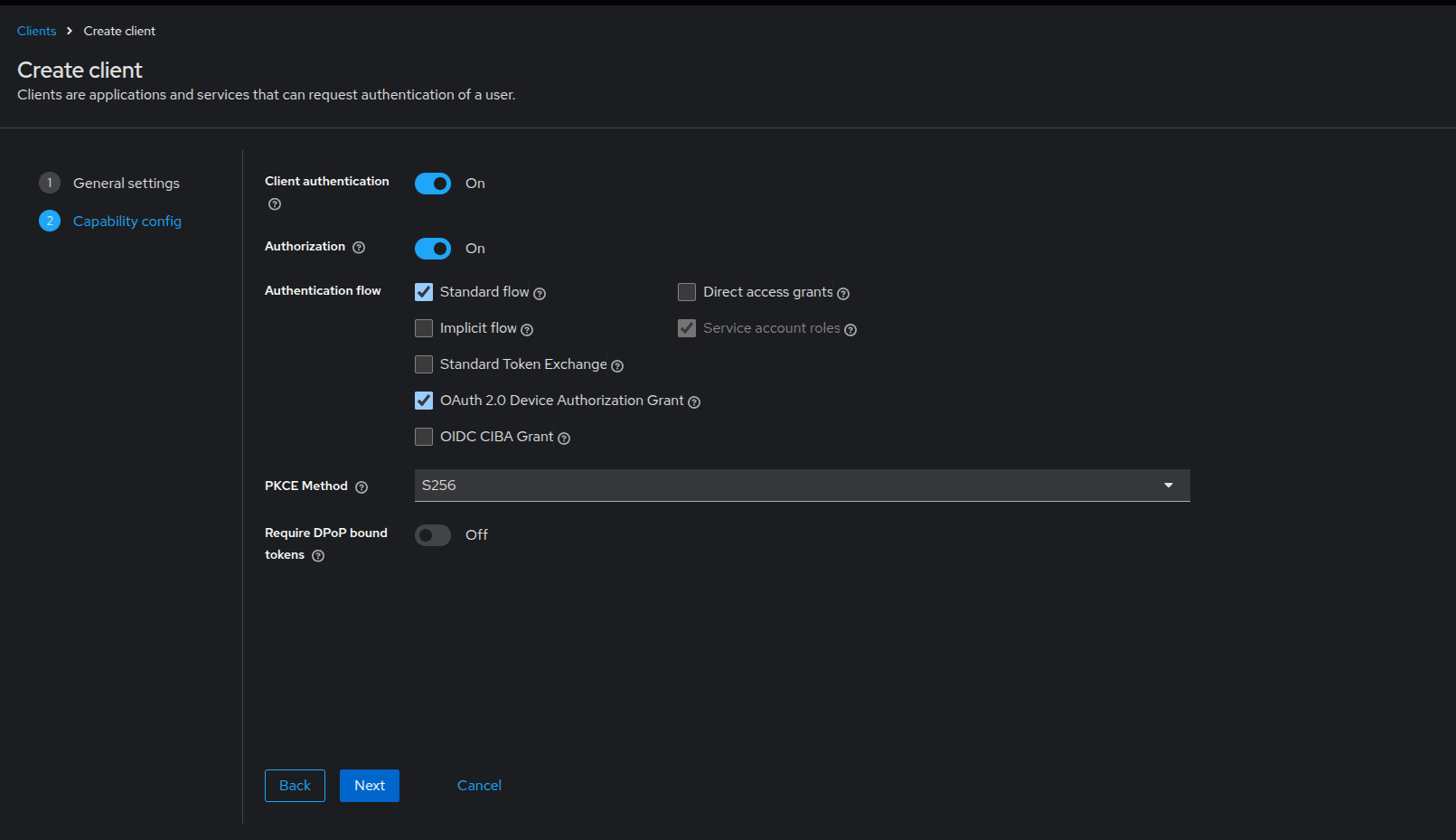
In Capability config, enable Client authentication (Confidential Client) and ensure Standard flow is selected.
Login Settings
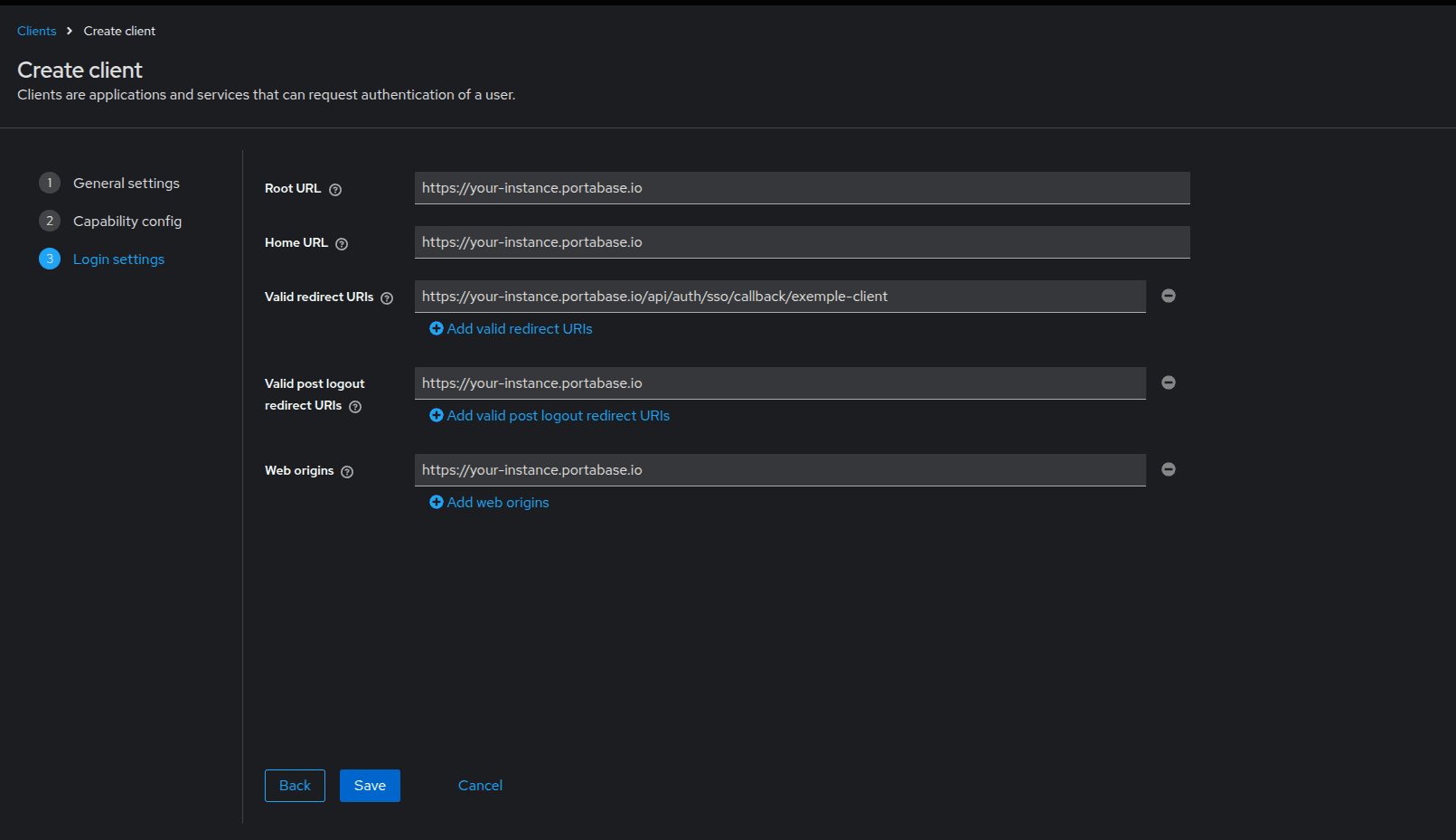
Define the allowed URLs:
- Valid redirect URIs:
https://portabase.your-domain.com/api/auth/sso/callback/your-provider-id
Get the Secret
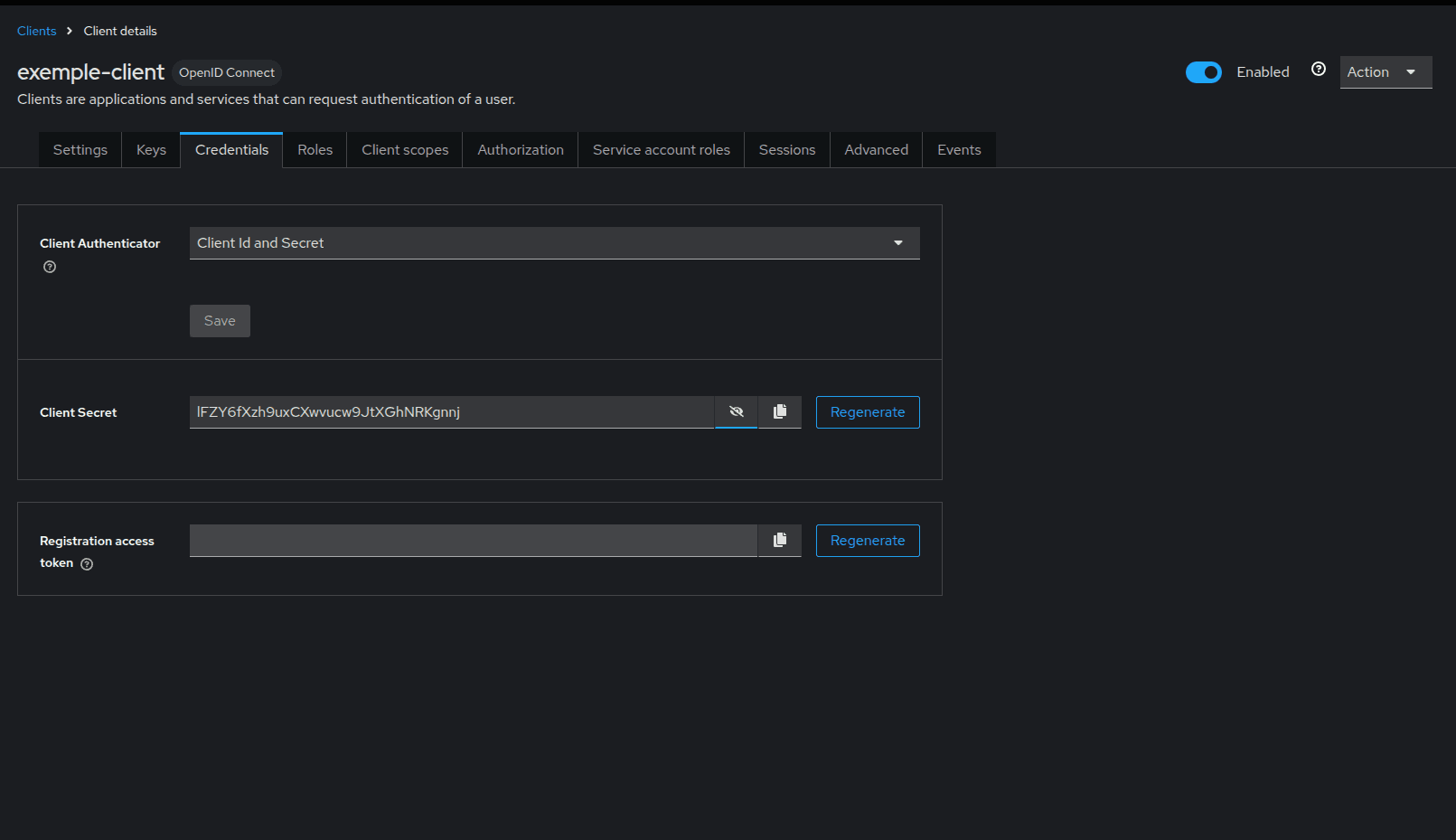
Save, then go to the Credentials tab to copy your Client Secret.
Environment Variables
Configure Portabase with the following values:
# Identifier and Title
AUTH_OIDC_ID="your-provider-id"
AUTH_OIDC_TITLE="Keycloak"
AUTH_OIDC_DESC=""
AUTH_OIDC_ICON=""

# OIDC Credentials
AUTH_OIDC_CLIENT="portabase"
AUTH_OIDC_SECRET="your-keycloak-secret"
AUTH_OIDC_ISSUER_URL="https://keycloak.your-domain.com/realms/your-realm"
AUTH_OIDC_HOST="keycloak.your-domain.com"

# Advanced Settings
AUTH_OIDC_SCOPES="openid profile email"
AUTH_OIDC_PKCE=true

# Role Mapping
AUTH_OIDC_ROLE_MAP="admin:admin,default:pending"

TRUSTED_DOMAINS="https://{Keycloak URL}, https://{Portabase URL}"
If you changed AUTH_OIDC_ID, don't forget to adjust the redirect URL in Keycloak accordingly.
Advanced Configuration
If automatic discovery doesn't work, you can manually specify the endpoints:
AUTH_OIDC_POCKET_DISCOVERY_ENDPOINT="https://keycloak.your-domain.com/realms/your-realm/.well-known/openid-configuration"
AUTH_OIDC_POCKET_JWKS_ENDPOINT="https://keycloak.your-domain.com/realms/your-realm/protocol/openid-connect/certs"
Last updated on