

Authentik
Configuration guide for Authentik via OIDC in Portabase.
The integration of Authentik offers a modern authentication solution, ideal for self-hosting your Portabase instance.
Configuration Steps
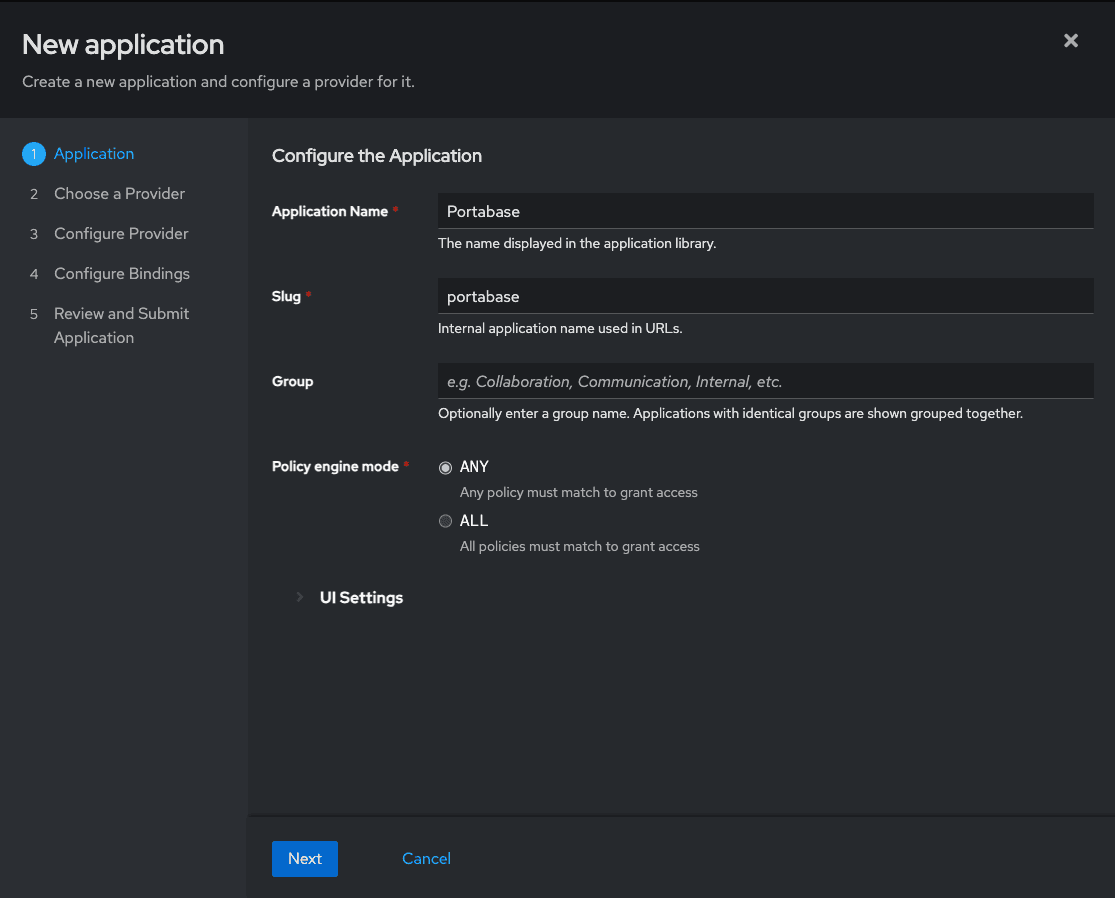
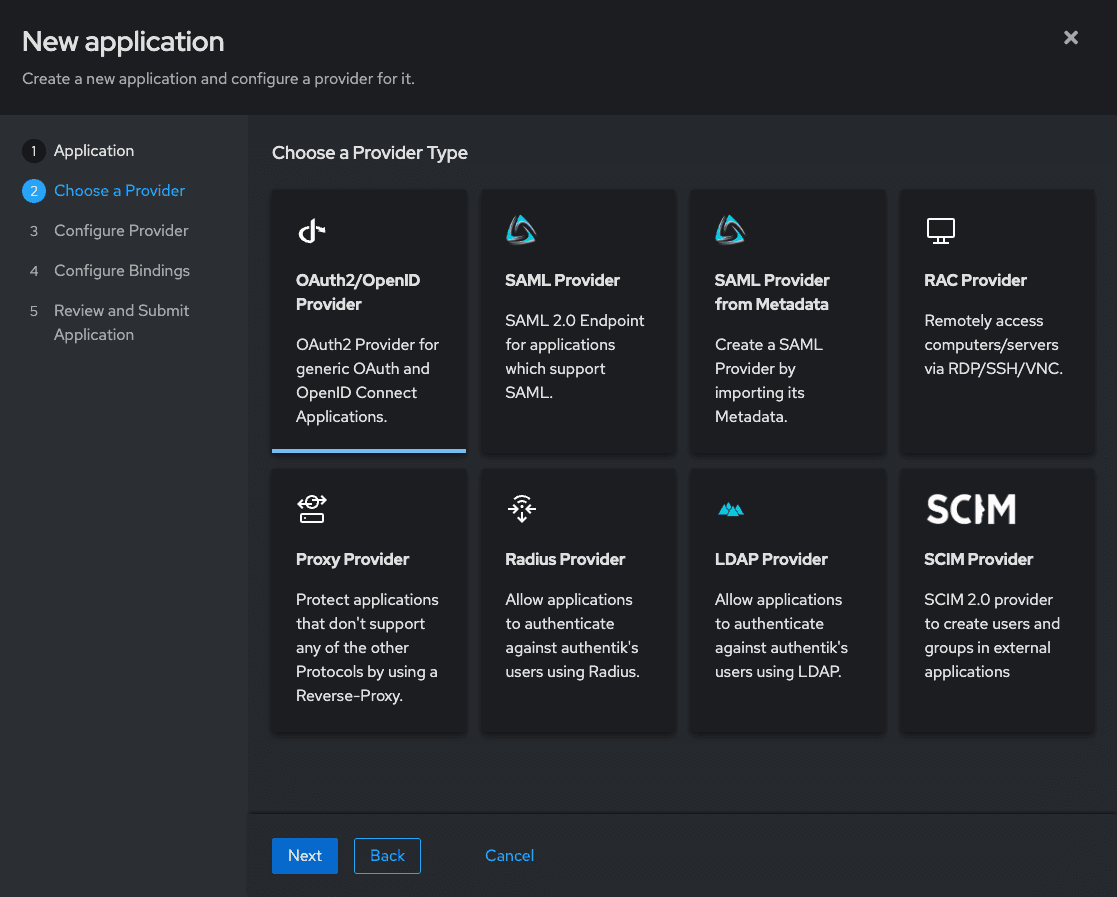
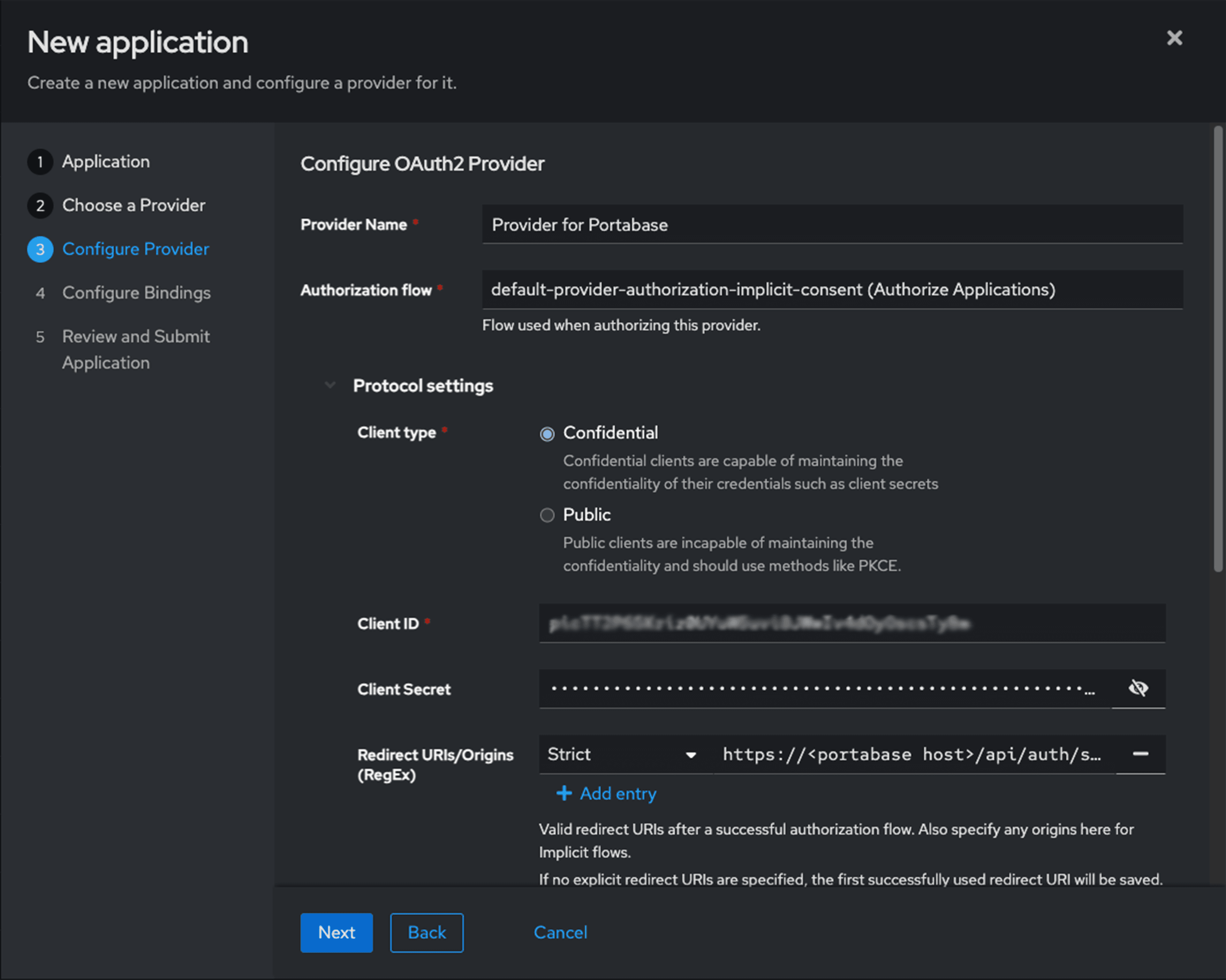
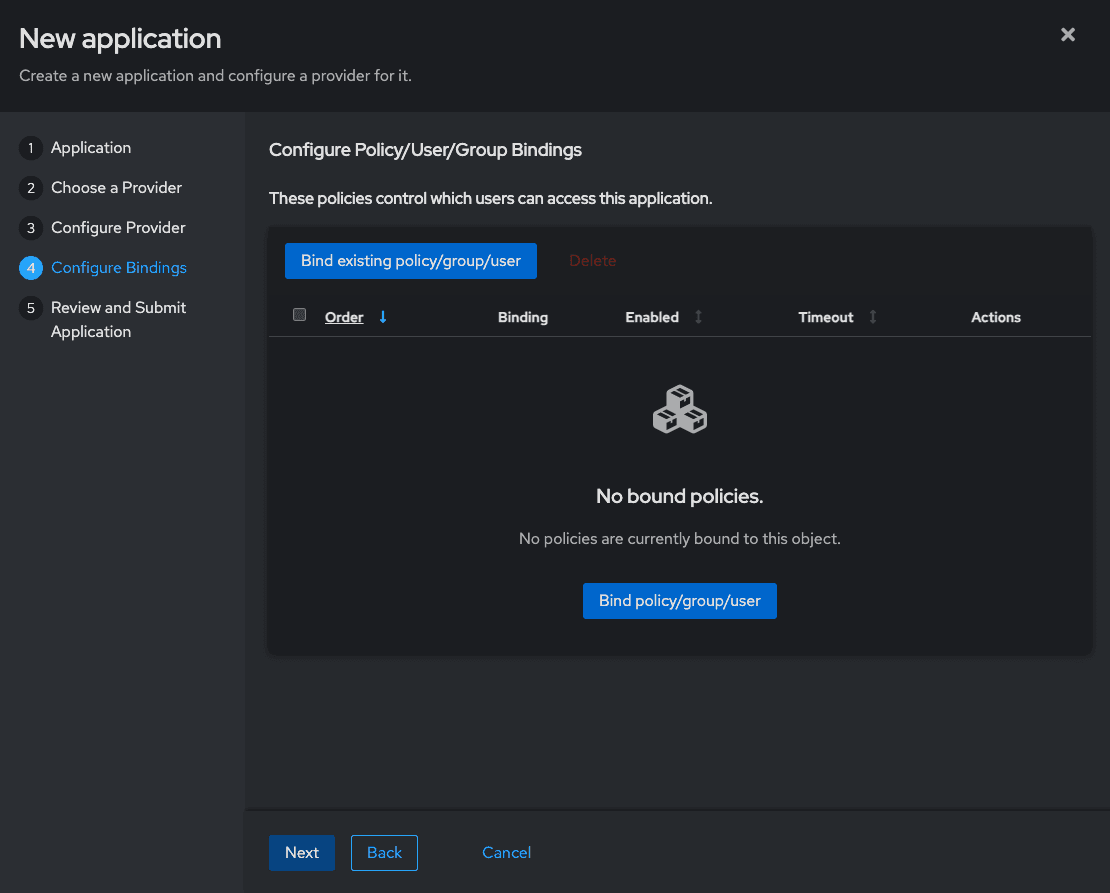
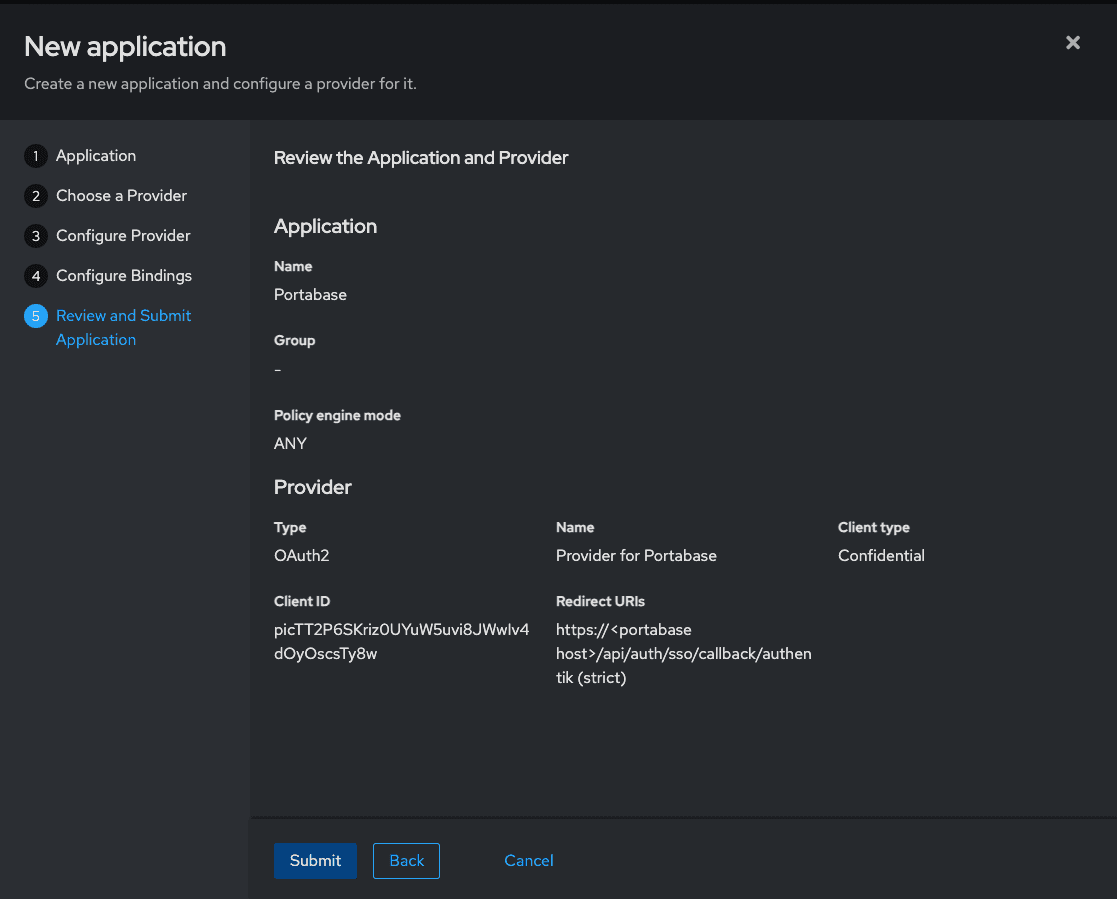
Configure OAuth2 provider
Set the authorized redirect URL to allow returning to Portabase after logging in:
- Redirect URLs/Origins: https://portabase.your-domain.com/api/auth/sso/callback/authentik
Environment Variables
Configure Portabase with the following values. This example uses the dynamic AUTH_OIDC_AUTHENTIK_ prefix to isolate the configuration.
# Identifier and Title
AUTH_OIDC_AUTHENTIK_ID="authentik"
AUTH_OIDC_AUTHENTIK_TITLE="Authentik"
AUTH_OIDC_AUTHENTIK_DESC="Login via my Authentik instance"

# OIDC Credentials
AUTH_OIDC_AUTHENTIK_CLIENT="portabase"
AUTH_OIDC_AUTHENTIK_SECRET="your-authentik-secret"
AUTH_OIDC_AUTHENTIK_ISSUER_URL="https://authentik.your-domain.com/application/o/<authentik-slug>/"
AUTH_OIDC_AUTHENTIK_HOST="authentik:3000" # If in the same Docker network or authentik.your-domain.com

# Advanced Settings
AUTH_OIDC_AUTHENTIK_SCOPES="openid profile email groups"
AUTH_OIDC_AUTHENTIK_PKCE=true

# Role Mapping
AUTH_OIDC_AUTHENTIK_ROLE_MAP="admin:admin,default:user"

AUTH_OIDC_AUTHENTIK_ALLOW_UNLINKING=false

TRUSTED_DOMAINS="https://{Authentik URL}, https://{Portabase URL}"
Specific Endpoints (Optional)
If automatic discovery doesn't work, you can manually specify the endpoints:
AUTH_OIDC_AUTHENTIK_DISCOVERY_ENDPOINT="https://authentik.your-domain.com//application/o/<authentik-slug>/.well-known/openid-configuration"
AUTH_OIDC_AUTHENTIK_JWKS_ENDPOINT="https://authentik.your-domain.com//application/o/<authentik-slug>/.well-known/jwks.json"
Last updated on