

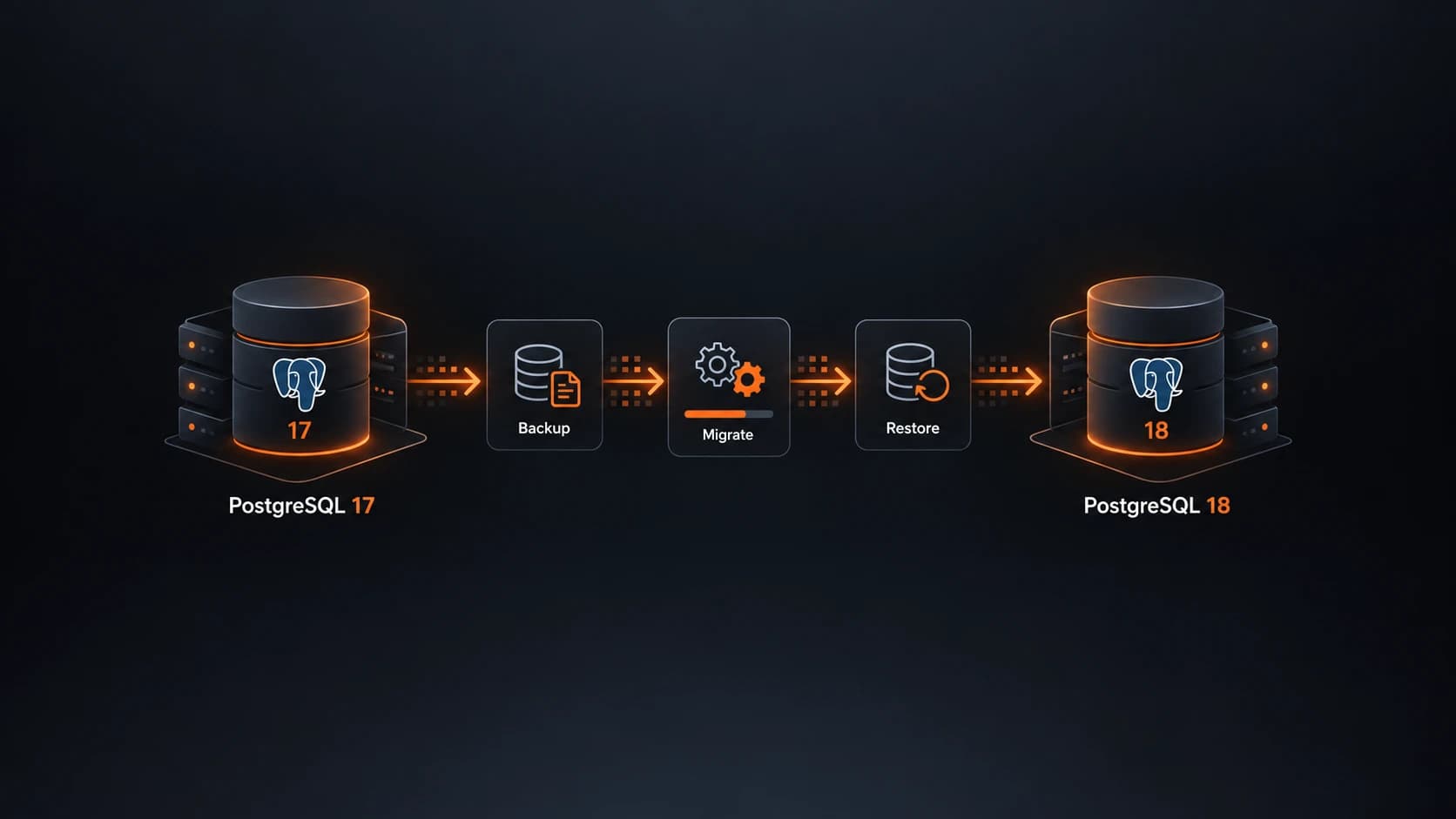
PostgreSQL 18 was released in September 2025. Sooner or later, every database still running PostgreSQL 17 will have to move to it.
The catch: upgrading PostgreSQL to a new major version is not just a matter of changing the image tag in your docker-compose.yml. The on-disk data format changes between major versions, so a PostgreSQL 18 server cannot start on a data directory created by PostgreSQL 17. The data has to be migrated.
In this tutorial, we will migrate a PostgreSQL 17 database to a PostgreSQL 18 database with Portabase, in three steps:
- back up both databases, so that nothing can be lost;
- migrate the PostgreSQL 17 backup to the PostgreSQL 18 database;
- restore it on PostgreSQL 18 and check the result.
Why a major PostgreSQL upgrade is usually painful
There are two classic ways to upgrade PostgreSQL from one major version to another.
pg_dump / pg_dumpall, then psql or pg_restore. You export the data from the old server and import it into the new one. It is simple and reliable, but entirely manual: you write the commands or the scripts, you move the dump files around yourself, and you get no history, no status, and no logs other than what your terminal shows.
pg_upgrade. It upgrades the data directory in place and is much faster on large databases. However, it requires the binaries of both versions on the same machine, which is not a natural fit for containers. PostgreSQL 18 also adds a new trap: initdb now enables data checksums by default. If your PostgreSQL 17 cluster was created without checksums, the new cluster must be initialized with --no-data-checksums, otherwise pg_upgrade refuses to proceed.
With Docker, there is one more detail. The official postgres:18 image changes the default location of PGDATA to /var/lib/postgresql/18/docker, and expects the volume to be mounted on /var/lib/postgresql. You cannot simply point the new container at the volume of the old one.
In every case, the hard part is the same: if something goes wrong halfway through, rolling back is up to you.
What is Portabase?
Portabase is an open-source (Apache 2.0), self-hosted backup and restore platform, designed to centrally manage the backups of multiple servers from a single dashboard.
Its architecture relies on two components:
The Portabase server provides the web interface and acts as the control plane: you declare agents, organize databases into projects, configure storage destinations, backup schedules, retention policies, notifications, and run restore operations.
The Portabase agents are deployed as close as possible to your data. They run the backup and restore operations. The agents contact the server, never the other way around: there is no inbound port to open in the environments where your databases live.
Portabase supports the following data sources:
- PostgreSQL
- MySQL
- MariaDB
- MongoDB
- SQLite
- Redis
- Valkey
- Firebird
- Microsoft SQL Server
- Docker volumes
- Files
Backups can be triggered manually or scheduled with cron expressions, encrypted with AES-GCM, and sent to one or several destinations at the same time: local storage, S3-compatible storage, Google Drive, Azure Blob Storage, Google Cloud Storage, SFTP, or any Rclone backend. Notifications can be sent by email, Slack, Discord, Telegram, Ntfy, Gotify, or webhooks, and access is managed with organizations, projects, and roles.
Beyond backup and restore, Portabase also includes a migration tool (Tools → Migration) that imports the backups of a source database into a target database.
To learn more, see the documentation.
What Portabase brings to a PostgreSQL upgrade
With Portabase, the upgrade follows the same path as pg_dump and pg_restore, but every step is handled from the dashboard and leaves a trace:
- A backup comes first. You back up the PostgreSQL 17 database before touching anything.
- The source stays intact. The migration only reads the PostgreSQL 17 backups. Your PostgreSQL 17 database keeps running: if anything goes wrong, rolling back means pointing your application back to it.
- Nothing is overwritten by surprise. Migrating imports the backups into the PostgreSQL 18 database's backup list. The data only lands in PostgreSQL 18 when you explicitly restore it.
- Every operation is tracked. Backups and restorations have a status, a duration, and logs, and can trigger notifications.
Prerequisites
This tutorial assumes that:
- you already have a running Portabase instance (see the installation documentation);
- a Portabase agent can reach both databases: PostgreSQL 17, which contains your data, and PostgreSQL 18, the new, empty target;
- both databases are added to the same Portabase project.
If you have never set up an agent, the article How to Back Up Nextcloud with Portabase walks through the whole process.
Step 1 - Check that both databases are connected
Open the Agents menu and select your agent. The Managed Databases section should list both databases, each with a green status indicator.
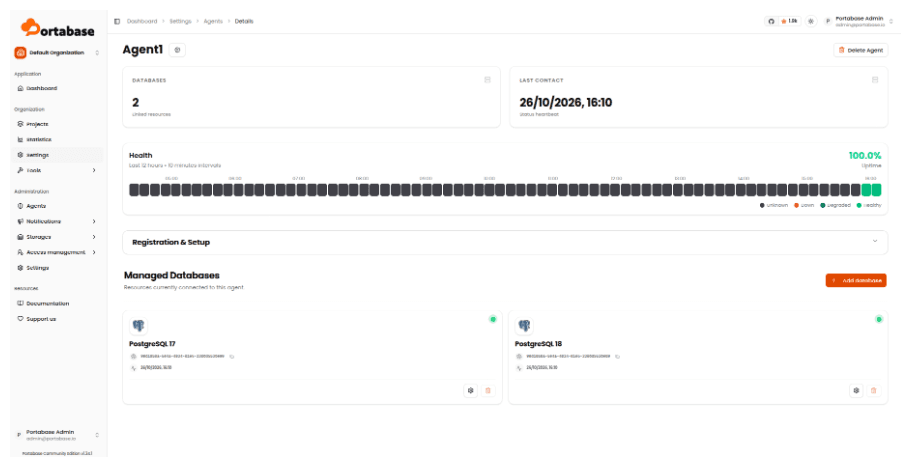
The agent is connected and manages both PostgreSQL 17 and PostgreSQL 18.
Step 2 - Back up both databases
Before migrating anything, take a backup of both databases:
- the PostgreSQL 17 backup is the safety net, and the source of the migration;
- the PostgreSQL 18 backup keeps the state of the target before it gets overwritten.
Open your project, click Select all (1) to select both databases, then click Backup (2) in the action bar at the bottom of the page.
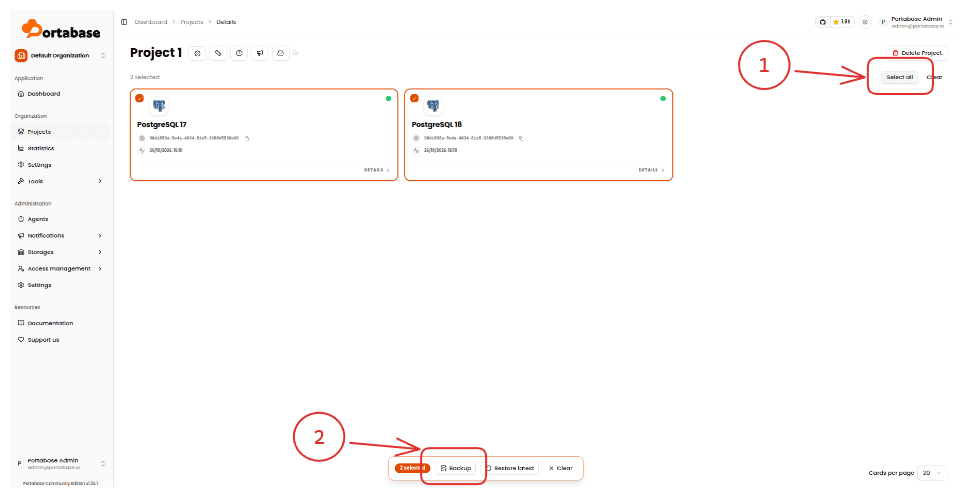
A notification confirms that the backups have been started.
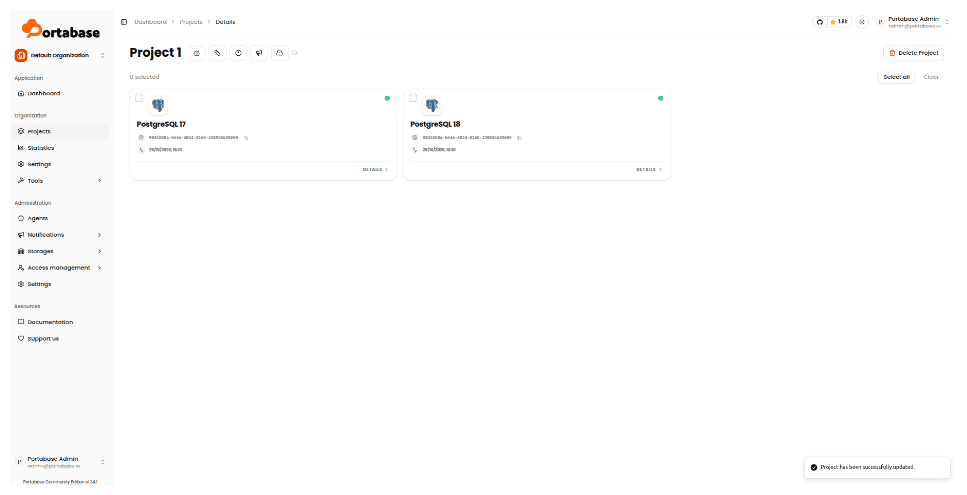
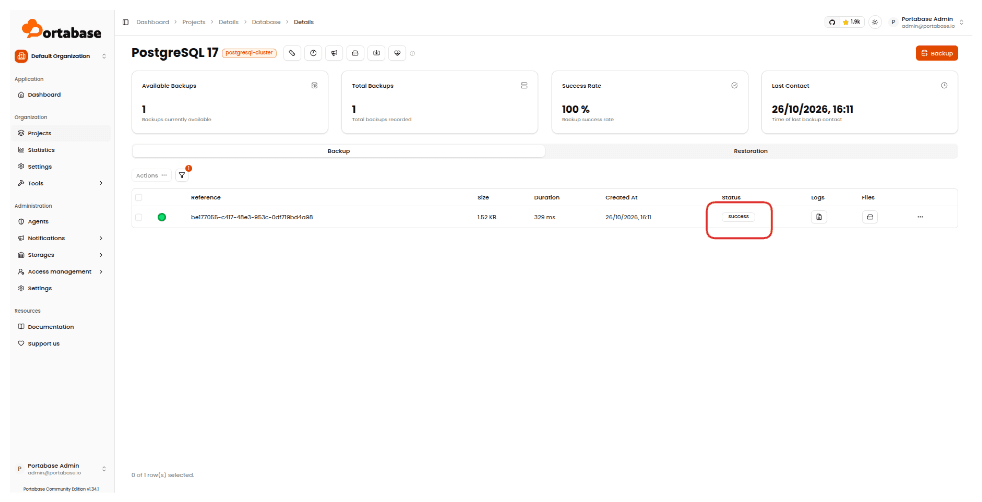
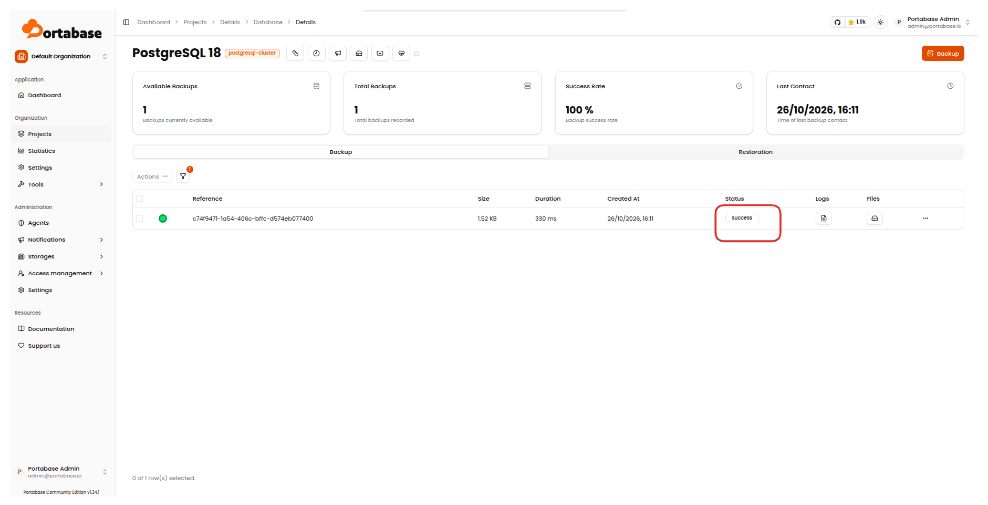
Open each database to check the result. Both backups should have the success status.
Stop writes before the final backup
The migration moves the content of a backup, not the live database. To avoid losing the last writes, stop your application (or put it in read-only mode) and take a last backup of PostgreSQL 17 just before migrating.
Step 3 - Pick the backup to migrate
Open the PostgreSQL 17 database. The Backup tab lists every backup taken for it.
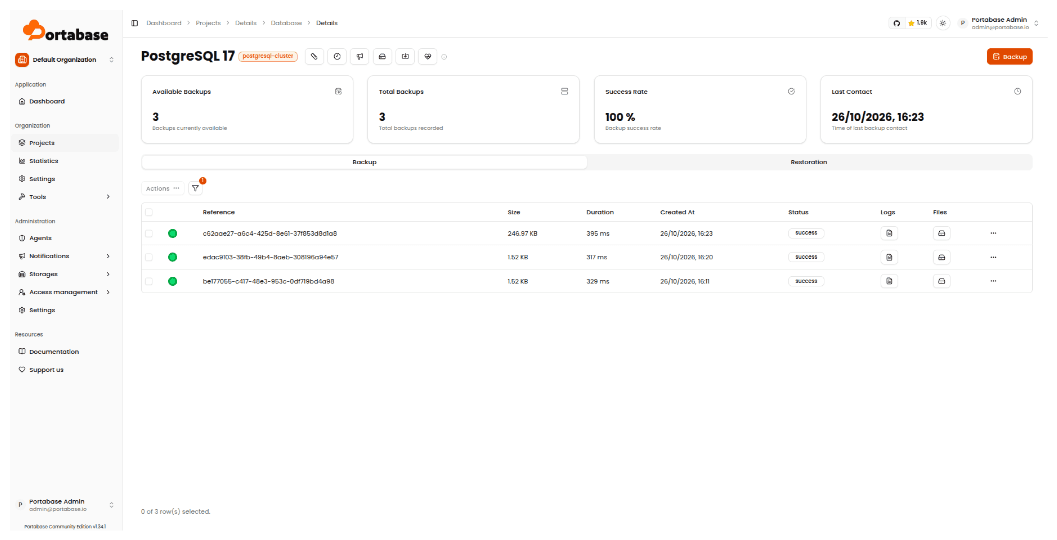
Identify the one you want to move to PostgreSQL 18: in most cases, the most recent one. In our example, it is the latest backup (246.97 KB), which contains the data; the older 1.52 KB backups were taken while the database was still empty.
Step 4 - Run the migration
In the sidebar, open Tools → Migration (1). The Database Migration page is split into three columns: the source on the left, the migration flow in the middle, and the target on the right.
Select the source project, here Project 1 (2).
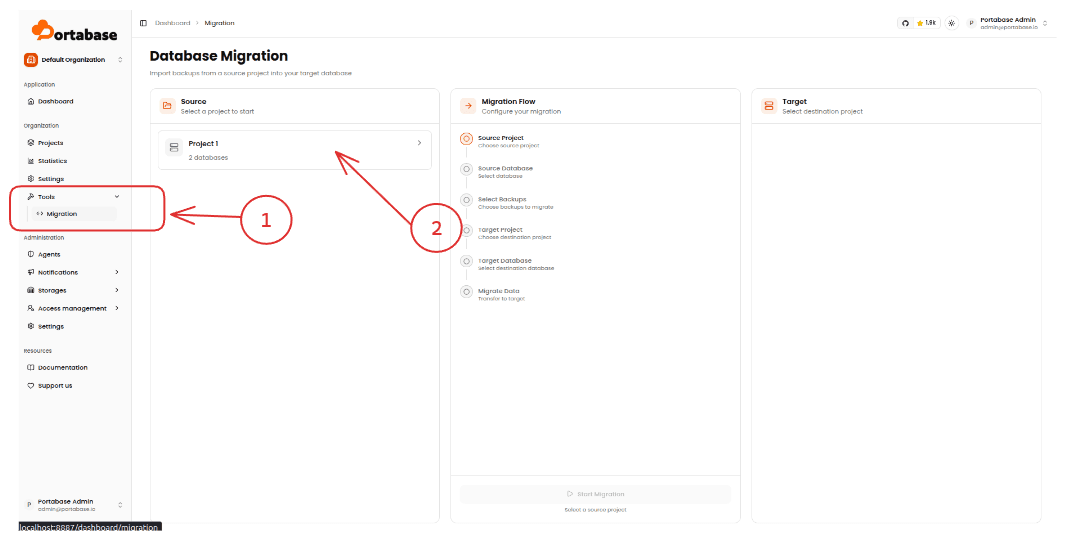
Then follow the Migration Flow:
- select the source database, PostgreSQL 17;
- select the backup to migrate (3);
- select the target project;
- select the target database, PostgreSQL 18 (4).
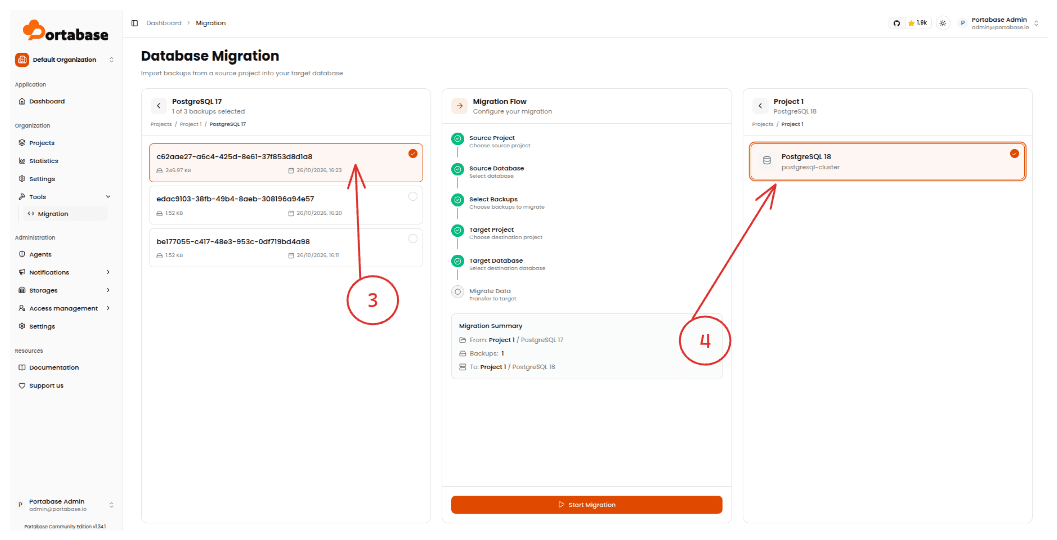
The Migration Summary recaps the operation: from Project 1 / PostgreSQL 17, one backup, to Project 1 / PostgreSQL 18. Check it, then click Start Migration.
Step 5 - Restore the migrated backup on PostgreSQL 18
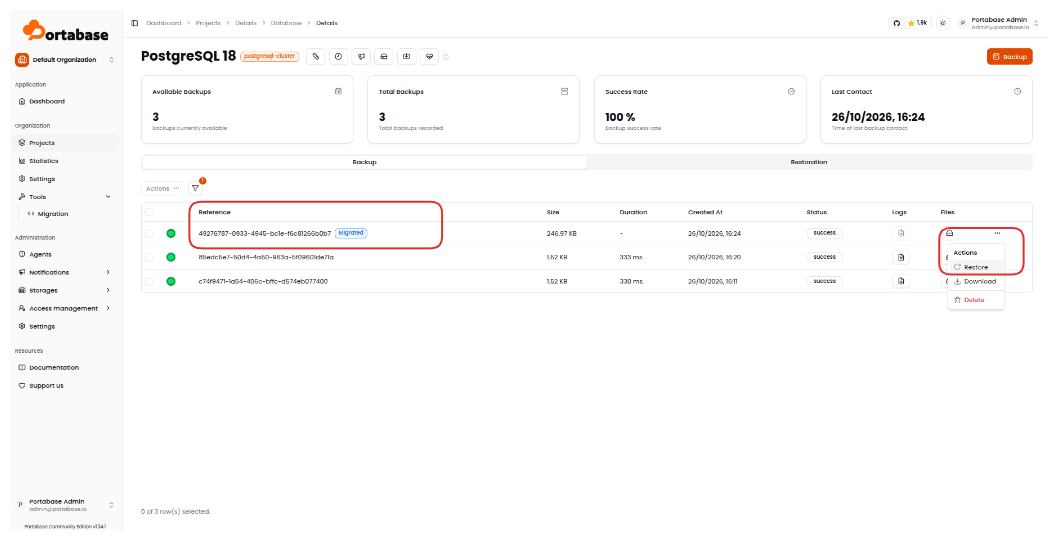
Open the PostgreSQL 18 database. The migrated backup now appears in its backup list, with the Migrated badge.
Open the actions menu (…) of this backup and click Restore.
The restore overwrites the target
Restoring replaces the content of the PostgreSQL 18 database with the content of the backup. This is why we backed it up in step 2.
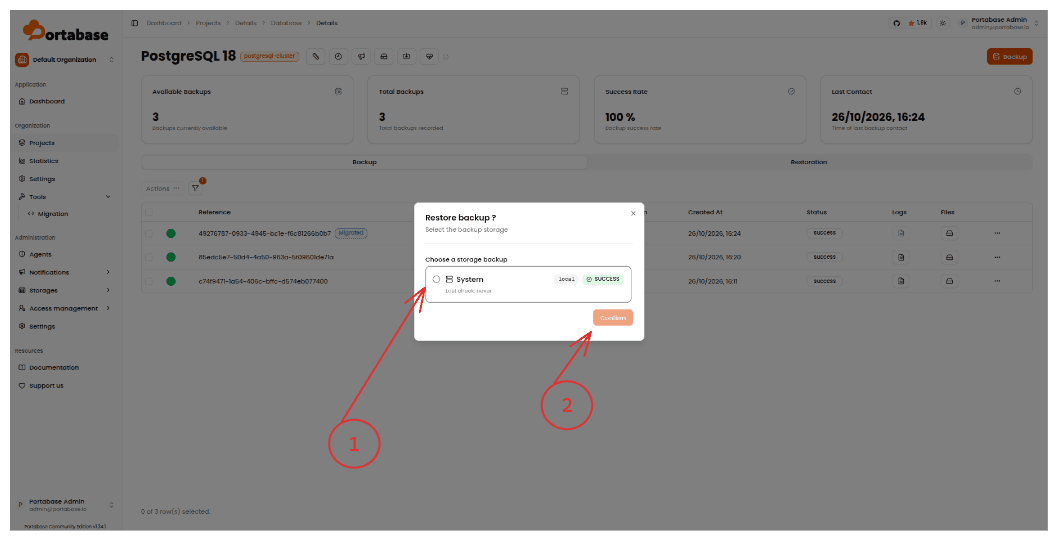
In the Restore backup? dialog, select the storage that holds the backup, here System (1), then click Confirm (2).
Step 6 - Check the result
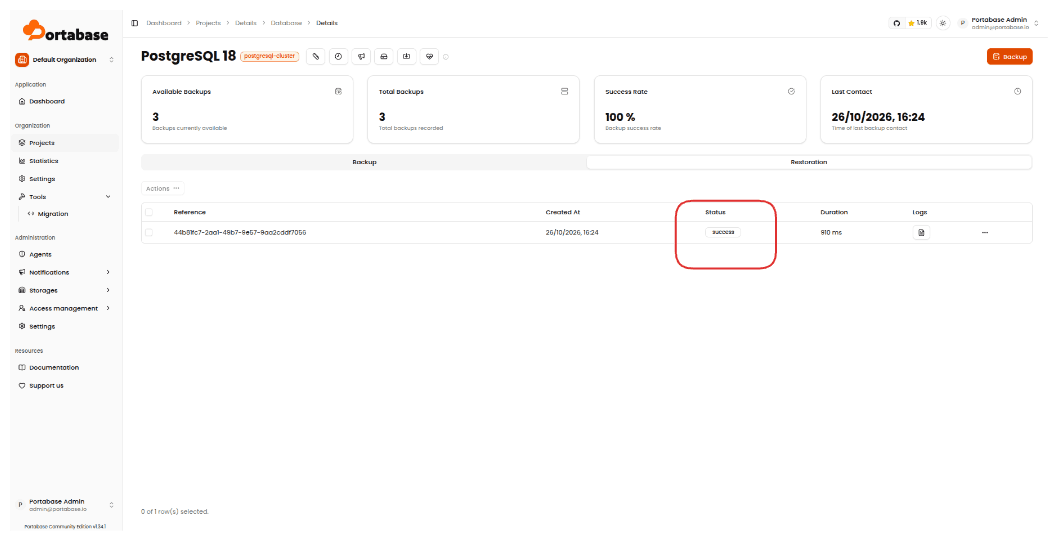
Open the Restoration tab of the PostgreSQL 18 database. The restoration should have the success status. The Logs column gives access to the details of the operation.
Finally, check the data directly in PostgreSQL. Connect to the new database and make sure it runs PostgreSQL 18 and contains your tables:
psql "<postgresql-18-connection-url>" -c "SELECT version();"
psql "<postgresql-18-connection-url>" -c "\dt"
Then compare a few row counts between the two databases:
SELECT count(*) FROM <your_table>;After the migration
Once the data is checked:
- point your application to the PostgreSQL 18 database;
- configure scheduled backups on PostgreSQL 18, with retention policies and off-host storage destinations;
- keep the PostgreSQL 17 database and its backups for a while, as a fallback, then decommission them once everything has been validated in production.
Your database now runs on PostgreSQL 18, and every step of the upgrade - backup, migration, restore - is recorded in Portabase.
Useful links
- Website: https://portabase.io
- Documentation: https://portabase.io/docs
- GitHub: https://github.com/portabase/portabase
- PostgreSQL 18 release notes: https://www.postgresql.org/docs/18/release-18.html