

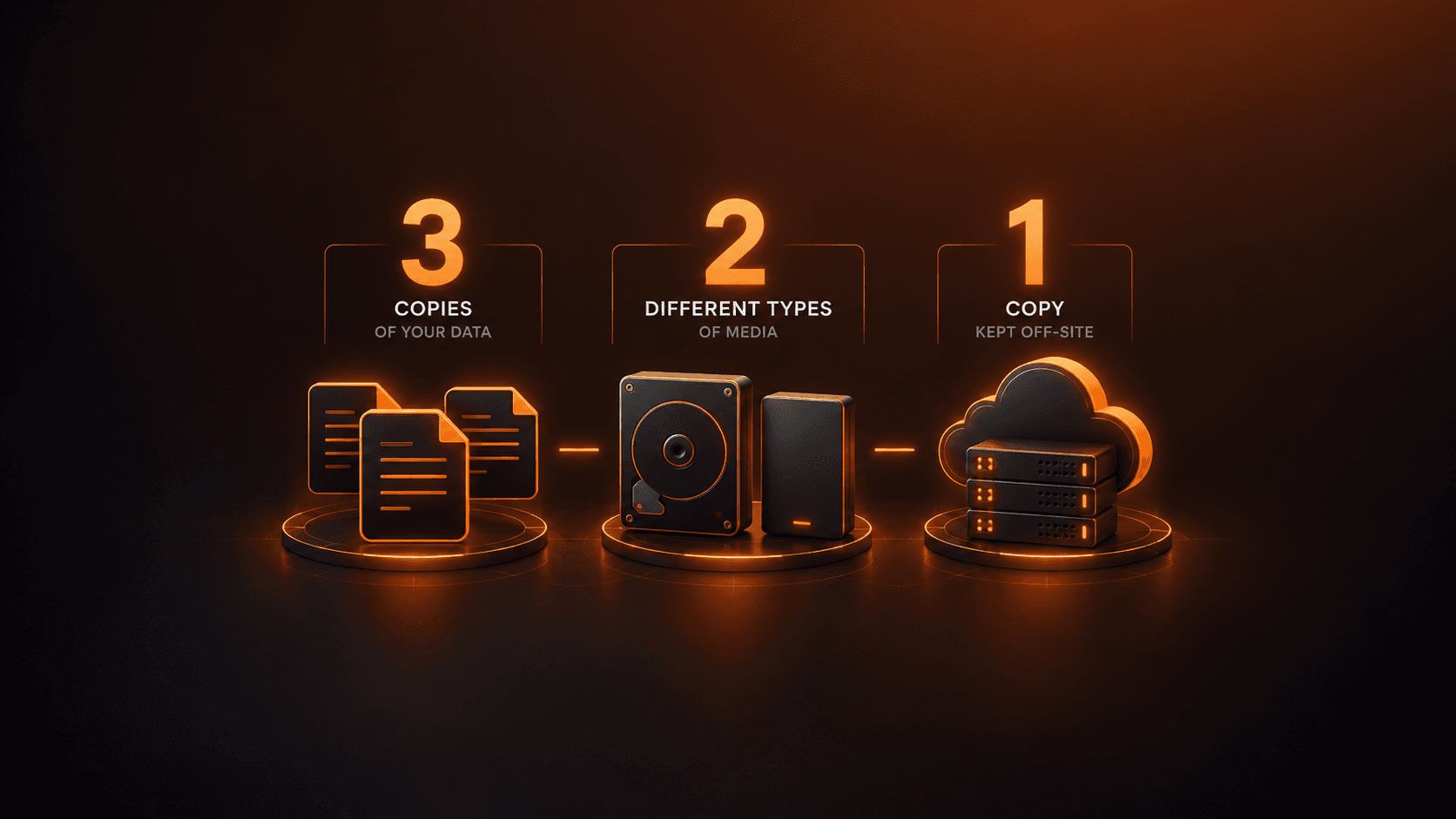
A single backup is not enough to protect your data.
Hardware failure, human error, misconfiguration, or a cyberattack can lead to the loss of critical data. When backups are stored in the same location as the production infrastructure, they can disappear alongside the original data.
This is exactly the problem addressed by the 3-2-1 backup rule. This strategy is based on three simple principles: keep multiple copies of your data, use different storage media, and keep at least one copy off-site.
This guide explains how to apply the rule with Portabase and strengthen the remote copy with immutable storage.
The 3-2-1 rule at a glance
| Principle | Objective | Example with Portabase |
|---|---|---|
| 3 copies | Prevent a single incident from causing permanent data loss | The production data source, one local backup, and one remote backup |
| 2 different media | Reduce the risk of a common failure | Local storage and remote storage, such as an S3-compatible bucket |
| 1 off-site copy | Ensure recovery remains possible after the complete loss of the primary site | Immutable off-site storage, such as an S3-compatible bucket with Object Lock enforcing the WORM (Write Once, Read Many) model |
These three numbers define a minimum baseline. On their own, they do not guarantee that a backup is usable: restores must be tested and backup failures must be monitored.
What does each number in the 3-2-1 rule mean?
3: keep three copies of your data
You should have at least three copies of your data:
- the production copy, used daily by your applications
- a first backup, available for quick recovery
- a second backup, stored independently of the first
The goal is to prevent a single incident from causing permanent data loss. If the production server fails and the first backup is corrupted or unavailable, the third copy remains accessible.
2: use two different types of storage media
Keeping multiple copies is not enough if they all rely on the same infrastructure. A data source and two backup directories stored on the same disk remain exposed to the same hardware failure.
The copies should therefore be distributed across at least two genuinely independent storage media or systems, for example:
- a local disk and a dedicated backup server
- an independent NAS and cloud object storage
- an SFTP server and an S3-compatible bucket
Two destinations do not count as independent media if they depend on the same disk, host, or administration system. To reduce the risk of a common failure, you should also avoid entrusting all your remote copies to the same cloud provider.
1: keep at least one copy off-site
The off-site copy should be stored in a location that is geographically separate from the primary infrastructure. It protects against events such as:
- a fire or flood in the server room
- equipment theft
- a major power outage
- an administrative error affecting the entire local infrastructure
- a cyberattack that reaches both production systems and connected backups
This copy can be hosted in another data center, on remote infrastructure, or by a cloud storage provider.
Tutorial: applying the 3-2-1 rule with Portabase
Step 1: add the storage channels
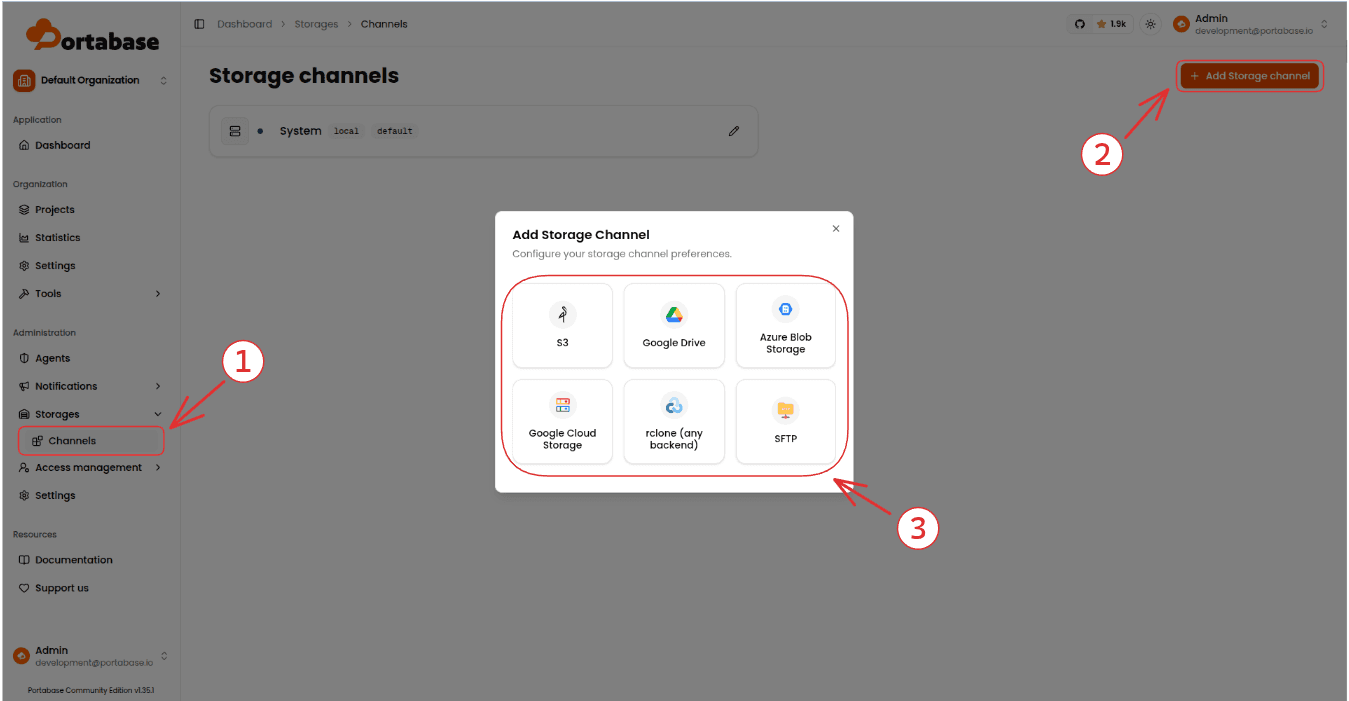
From the Portabase interface, go to Storages > Channels. To create a channel scoped to a single organization, use Organisation > Storages > Channels instead. Then create one channel for each destination.
Portabase supports:
- local storage
- S3-compatible storage, including self-hosted solutions such as RustFS or Garage
- SFTP servers
- Azure Blob Storage
- Google Cloud Storage and Google Drive
Portabase can also send backups to any provider accessible through rclone.
In our example, we reuse the existing local storage and create a second channel for the remote S3 bucket.
Step 2: link the storage destinations to the data source
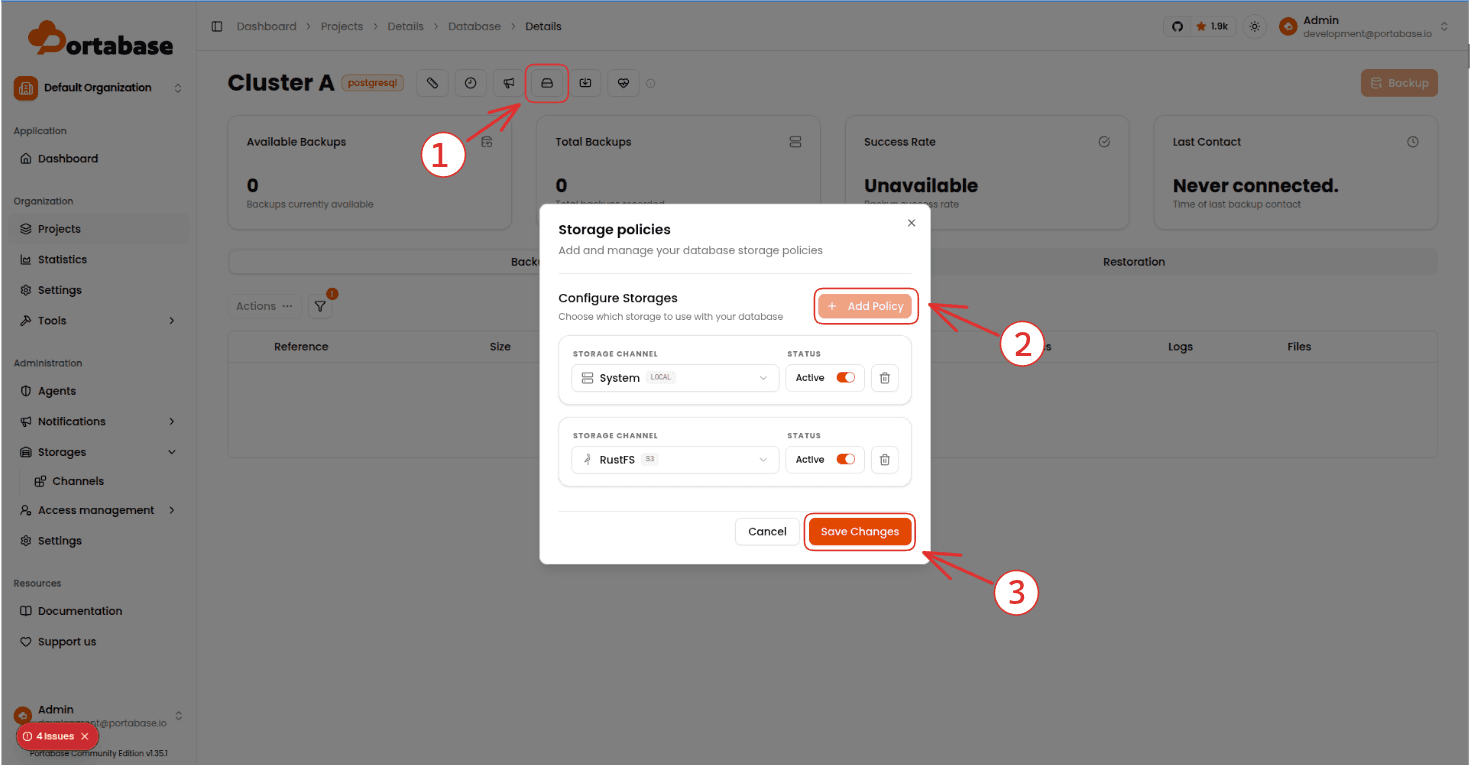
In Portabase, open the target data source, then go to the Storage tab.
Create a storage policy for each target storage channel. Once the policies are enabled, the same backup file is sent to all destinations simultaneously.
From the Backups tab, each backup shows a separate send status for every storage channel: pending, success, or failed. The send can therefore succeed for local storage while failing for the remote bucket, so partial delivery failures remain visible.
Step 3: automate backups and retention
In the Schedule tab, configure a recurring backup. For example, the following cron expression triggers a backup every day at 2:00 a.m.:
0 2 * * *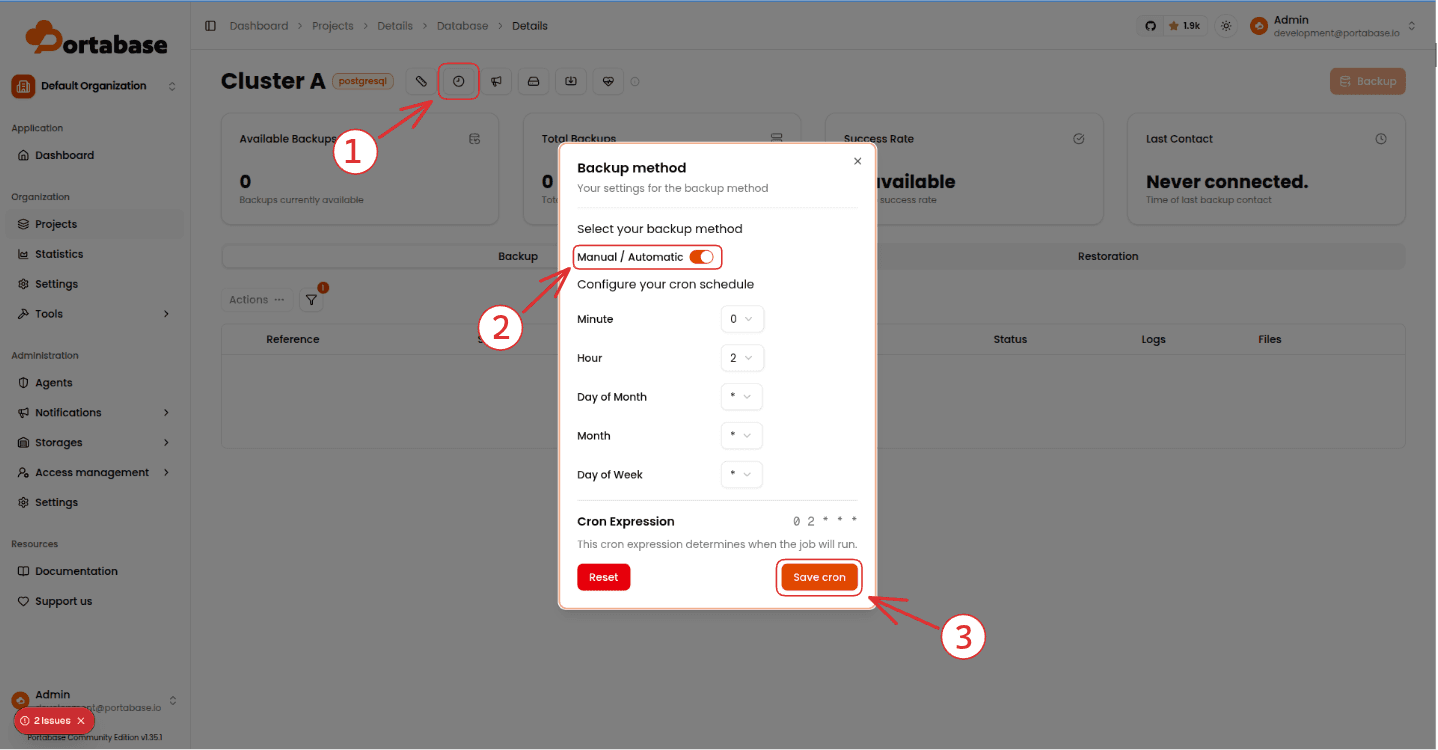
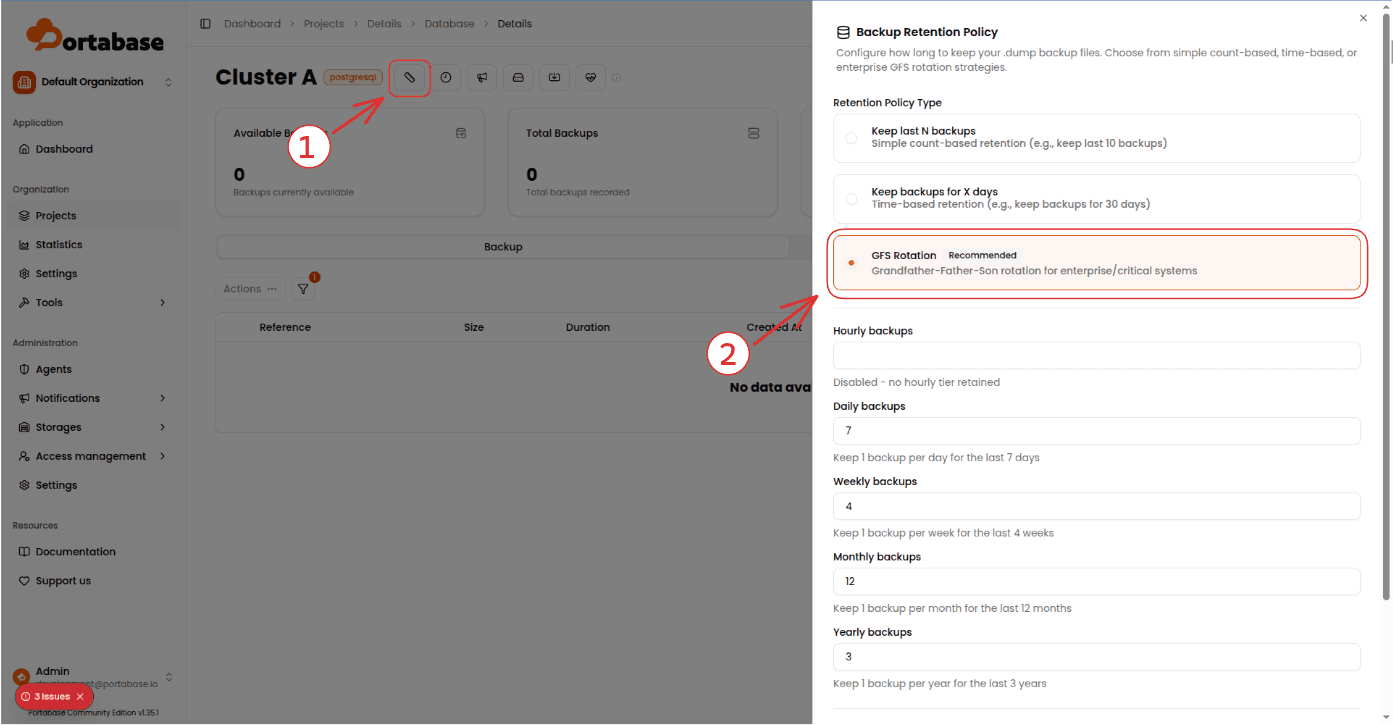
Next, add a retention policy in the Schedule > Retention section. You can keep the N most recent backups, retain all backups from the past N days, or use a GFS (Grandfather-Father-Son) strategy to preserve daily, weekly, monthly, and yearly restore points.
Step 4: configure alerts
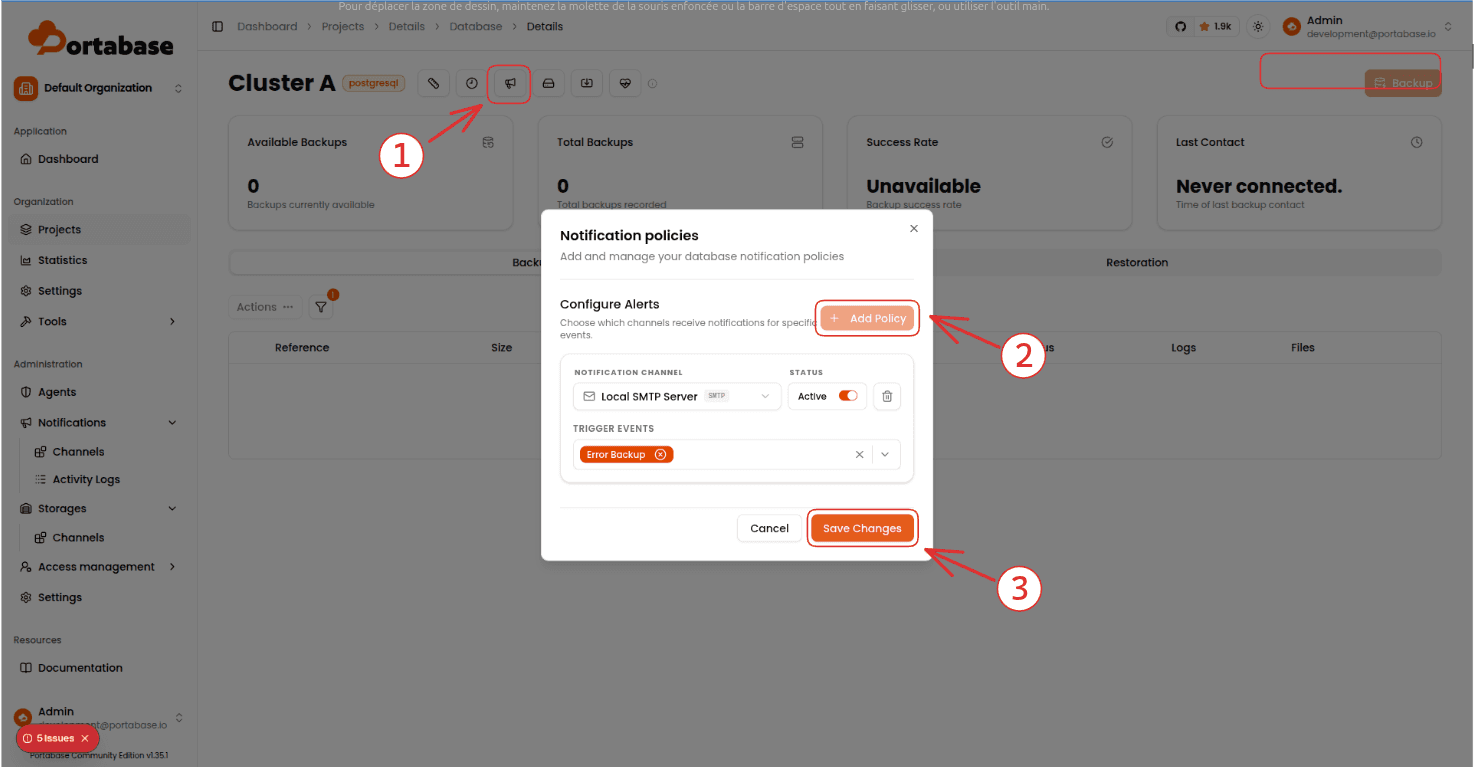
A backup that fails silently creates a false sense of security. At a minimum, configure an alert policy for the error_backup event and associate it with a notification channel.
Add an immutable backup with Object Lock
An off-site copy remains vulnerable if a compromised account can delete or modify it. To reduce this risk, the remote bucket can enforce an immutability policy, often called Object Lock.
For the duration of the lock, objects stored in the bucket cannot be deleted or overwritten under the rules enforced by the provider. This protection is applied by the object storage system itself, independently of Portabase.
Portabase retention and bucket retention: two different mechanisms
The two retention periods serve different purposes:
| Mechanism | Configured in | Purpose |
|---|---|---|
| Portabase retention policy | Portabase interface | Selects old backups to delete according to a count, days, or GFS rule |
| Object Lock | Bucket provider | Prevents an object from being deleted or modified for a specified period |
Align the retention periods
The Portabase retention period must be at least as long as the lock period applied by the bucket. Otherwise, Portabase will attempt to delete an object that is still protected, and the storage provider will reject the operation.
For example, with a 30-day lock, configure a Portabase policy that retains backups for at least 30 days. A small additional margin helps avoid discrepancies caused by object creation times and cleanup task schedules.
Choose the retention mode
For example, IONOS CLOUD Object Storage supports two Object Lock retention modes:
- Governance: objects are protected until the retention period expires, but certain users with specific permissions can bypass the lock
- Compliance: the lock cannot be bypassed before it expires. This mode is suitable for legal or regulatory requirements
On IONOS CLOUD, Object Lock must be enabled when the bucket is created. Enabling Object Lock automatically enables versioning, and neither feature can be disabled afterward. This decision must therefore be made before sending the first backups.
Configure the immutable bucket
Configuration is performed through the storage provider's console or tools:
- create a bucket dedicated to Portabase backups
- enable versioning and Object Lock according to the provider's requirements
- define a default retention mode and period
- use dedicated credentials without permission to bypass the lock unless that permission is necessary
- add the bucket as an S3 channel in Portabase
- send a test backup and verify its retention settings in the provider's console
- test a restore from this copy
To create an IONOS CLOUD bucket with Object Lock, see the official IONOS CLOUD tutorial. Object Lock cannot be added to an existing bucket later.
Verify that the strategy actually works
A 3-2-1 architecture is only useful if it enables recovery within the expected timeframe. Regularly check the following:
- backups run according to the expected schedule
- every destination displays a
successstatus - the files are present on both storage media
- the remote copy is genuinely stored off-site
- Object Lock is applied to new objects with the correct expiration date
- alerts are received when a backup fails
- a test restore succeeds in an isolated environment
You should also define your recovery objectives: the Recovery Point Objective (RPO) is the maximum acceptable data loss measured in time, while the Recovery Time Objective (RTO) is the maximum acceptable time to restore service. These objectives should guide your backup frequency, retention period, and recovery procedure.
Conclusion
The 3-2-1 backup rule remains one of the simplest approaches to reducing the risk of data loss. It combines multiple copies, independent storage media, and an off-site backup.
With Portabase, you can automate backups, distribute them across multiple destinations, and track each transfer from a centralized interface. By adding Object Lock to the remote bucket, you also protect the off-site copy against accidental or malicious deletion during its retention period.
Finally, no strategy is complete without monitoring and test restores. A backup is only truly reliable once you have verified that it can be restored.