

Configure authentication via LinkedIn in Portabase.
LinkedIn integration allows your users to sign in via their professional LinkedIn profile.
Check the OAuth2 configuration to understand global variables and role management.
Configuration Steps
Create a LinkedIn Application
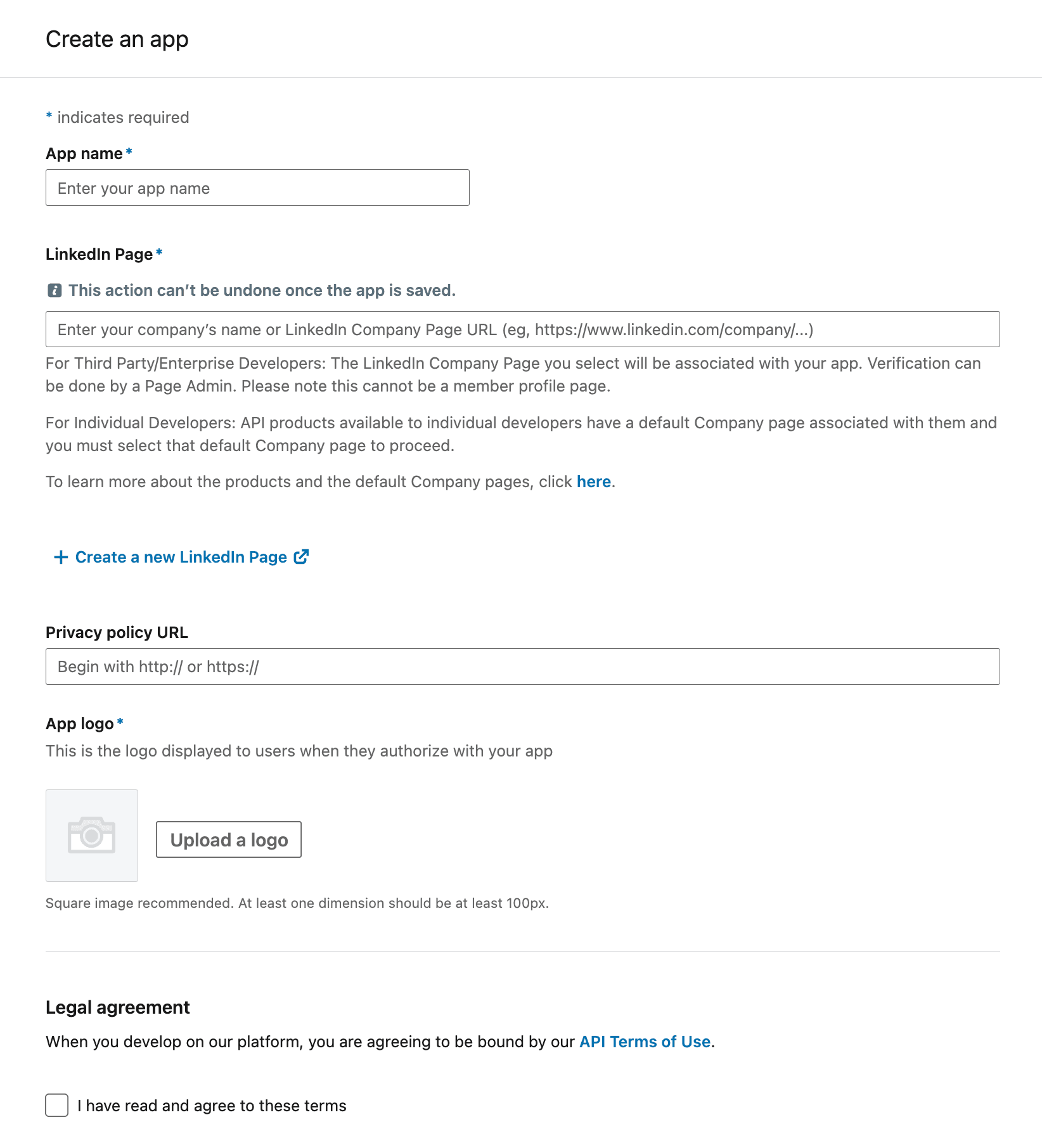
Go to the LinkedIn Developer Portal and click Create app.
-
Fill in the name, organization (or personal profile), and your website URL.
-
Accept the terms of use.
Enable Sign In with LinkedIn Product
In the Products tab, find Sign In with LinkedIn and click Request access. This is necessary to enable authentication.
Configure OAuth 2.0
Go to the Auth tab:
- In Authorized redirect URLs for your app, add:
https://portabase.your-domain.com/api/auth/callback/linkedin
Get Credentials
Still in the Auth tab, you will find your Client ID and Client Secret.
Environment Variables
Use these variables to configure LinkedIn authentication:
AUTH_SOCIAL_LINKEDIN_CLIENT="your-linkedin-client-id"
AUTH_SOCIAL_LINKEDIN_SECRET="your-linkedin-client-secret"
Restart the Dashboard
After updating your .env file, restart the instance:
portabase restart .docker-compose down && docker-compose up -dLast updated on