

Discord
Configure authentication via Discord in Portabase.
Discord integration is ideal for communities and teams already using Discord for their communication.
Check the OAuth2 configuration to understand global variables and role management.
Configuration Steps
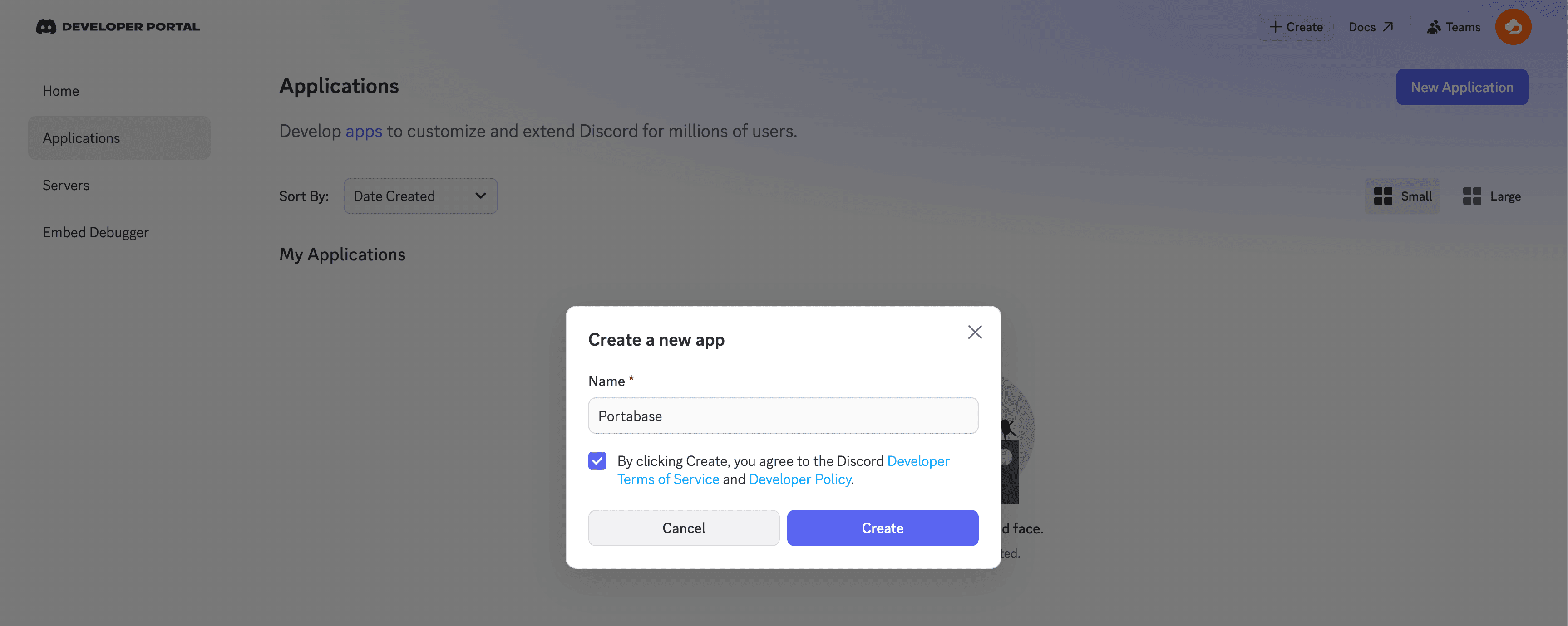
Configure OAuth2
Go to the OAuth2 > tab:
-
Add the redirect URL:
https://portabase.your-domain.com/api/auth/callback/discord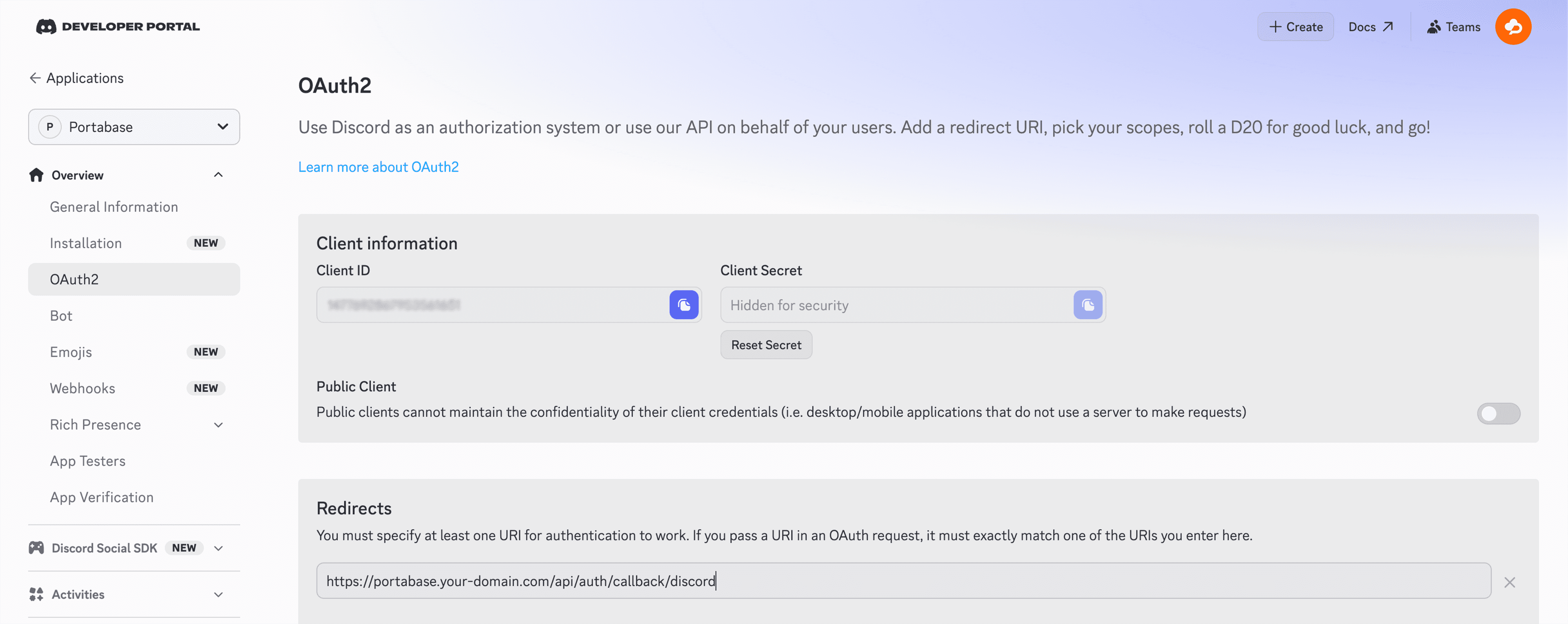
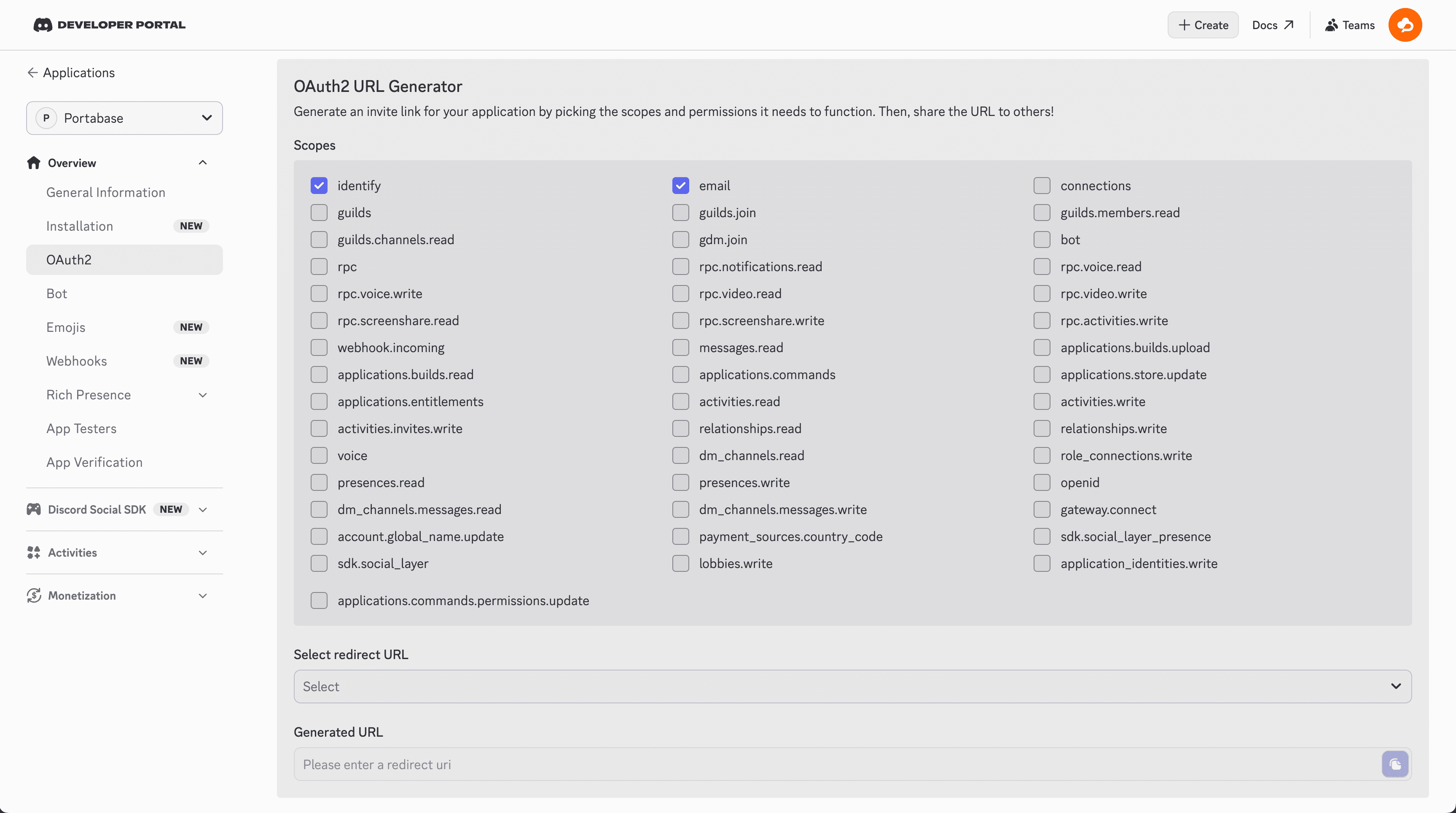
Select Permissions
In OAuth2 > URL Generator, select the identify and email scopes. These permissions are necessary to create the user account.
Get Credentials
Copy the Client ID. Click Reset Secret to get your Client Secret.
Environment Variables
Add these lines to your configuration:
AUTH_SOCIAL_DISCORD_CLIENT="your-discord-client-id"
AUTH_SOCIAL_DISCORD_SECRET="your-discord-client-secret"
Restart the Dashboard
After updating your .env file, restart the instance:
portabase restart .docker-compose down && docker-compose up -dLast updated on